🔥个人主页: Milestone-里程碑
❄️个人专栏: <<力扣hot100>> <<C++>><<Linux>>
🌟心向往之行必能至
一.Git 版本回退与撤退修改
之前我们也提到过,Git 能够管理⽂件的历史版本,这也是版本控制器重要的能⼒。如果有⼀天你发现之前前的⼯作做的出现了很⼤的问题,需要在某个特定的历史版本重新开始,这个时候,就需要版本回退的功能了。
1.1版本回退
| 参数 | 版本库状态 | 暂存区状态 | 工作区状态 | 适用场景 | 注意事项 |
|---|---|---|---|---|---|
--soft |
回退到指定版本 | 保持当前状态不变 | 保持当前状态不变 | 仅调整版本库,保留暂存 / 工作区内容 | - |
--mixed |
回退到指定版本 | 回退到指定版本 | 保持当前状态不变 | 默认选项,回退版本库 + 暂存区 | 无需额外参数,默认生效 |
--hard |
回退到指定版本 | 回退到指定版本 | 回退到指定版本 | 彻底回退所有区域到历史版本 | 工作区有未提交代码时禁止使用,会丢失未提交内容 |
HEAD 说明:
◦ 可直接写成 commit id,表⽰指定退回的版本
◦ HEAD 表⽰当前版本
◦ HEAD^ 上⼀个版本
◦ HEAD^^ 上上⼀个版本
◦
以此类推...
• 可以使⽤ 〜数字表⽰:
◦ HEAD~0 表⽰当前版本
◦ HEAD~1 上⼀个版本
◦ HEAD^2 上上⼀个版本
◦ 以此类推...
在上节课我们知道了ReadMe经过了两次提交,日志为
bash
lcb@hcss-ecs-1cde:~/gitcode$ git log --pretty=oneline
9abf140c35ac62624f4170932dc9808ab93fc5e8 (HEAD -> master) modify ReadMe
d908770ac1a99192cb8f272a3f4cb0ef9397ba99 add 3 files
ef866eba4f5a0727c0ce203db456b4e098743da1 add first file
我们使用git reset --hard回退到第一次提交,并使用cat 和git config查看,确认
bash
lcb@hcss-ecs-1cde:~/gitcode$ git reset --hard ef866eba4f5a0727c0ce203db456b4e098743da1
HEAD is now at ef866eb add first file
lcb@hcss-ecs-1cde:~/gitcode$ la
.git  ReadMe
lcb@hcss-ecs-1cde:~/gitcode$ cat ReadMe
Hello Milestone
lcb@hcss-ecs-1cde:~/gitcode$ git reflog
ef866eb (HEAD -> master) HEAD@{0}: reset: moving to ef866eba4f5a0727c0ce203db456b4e098743da1
结果也确实如此,同时暂存区和工作区也修改了
但如果我们后悔了,想进行回退呢?那也是可以的,通过前面的git config拿到最晚修改的ReadMe id进行修改
bash
lcb@hcss-ecs-1cde:~/gitcode$ git reset --hard 9abf140c35ac62624f4170932dc9808ab93fc5e8
HEAD is now at 9abf140 modify ReadMe
lcb@hcss-ecs-1cde:~/gitcode$ la
file1  file2  file3  .git  ReadMe
到这里一般回退功能就演示完毕了,但是如果我后悔了,想再回到 version3 怎么办?我们可以继续使用 git reset 命令,回退到 version3 版本 ,但是我们必须拿到 version3 的 commit id 去指定回退版本。但是我们看到了 git log 并不能打印出 version3 的 commit id ,运气好的话我们可以从终端上去找找之前的记录,运气不好的话 commit id 就已经被我们搞丢了~~
值得一提的是 Git 还提供了一个 git reflog 命令能补救一下,该命令用来记录本地的每一次指令。
bash
lcb@hcss-ecs-1cde:~/gitcode$ git reflog
9abf140 (HEAD -> master) HEAD@{0}: reset: moving to 9abf140
ef866eb HEAD@{1}: reset: moving to ef866eb
ef866eb HEAD@{2}: reset: moving to ef866eba4f5a0727c0ce203db456b4e098743da1
9abf140 (HEAD -> master) HEAD@{3}: reset: moving to 9abf140c35ac62624f4170932dc9808ab93fc5e8
9abf140 (HEAD -> master) HEAD@{4}: reset: moving to 9abf140c35ac62624f4170932dc9808ab93fc5e8
ef866eb HEAD@{5}: reset: moving to ef866eba4f5a0727c0ce203db456b4e098743da1
9abf140 (HEAD -> master) HEAD@{6}: commit: modify ReadMe
d908770 HEAD@{7}: commit: add 3 files
ef866eb HEAD@{8}: commit (initial): add first file
而每行开头的数字这些就是修改的commit id,而如果想要回到最新的版本,就--hard接上最后modify的,即上面的commit : modify ReadMe
这样,你就可以很⽅便的找到你的所有操作记录了,但 d95c13f 这个是啥东西?这个是 version
3 的 commit id 的部分。没错,Git 版本回退的时候,也可以使⽤部分 commit id 来代表⽬标版
本。
可往往是理想很丰满,现实很⻣感。在实际开发中,由于⻓时间的开发了,导致 commit id 早就找
不到了,可突然某⼀天,我⼜想回退到 version3,那该如何操作呢?貌似现在不可能了。。。
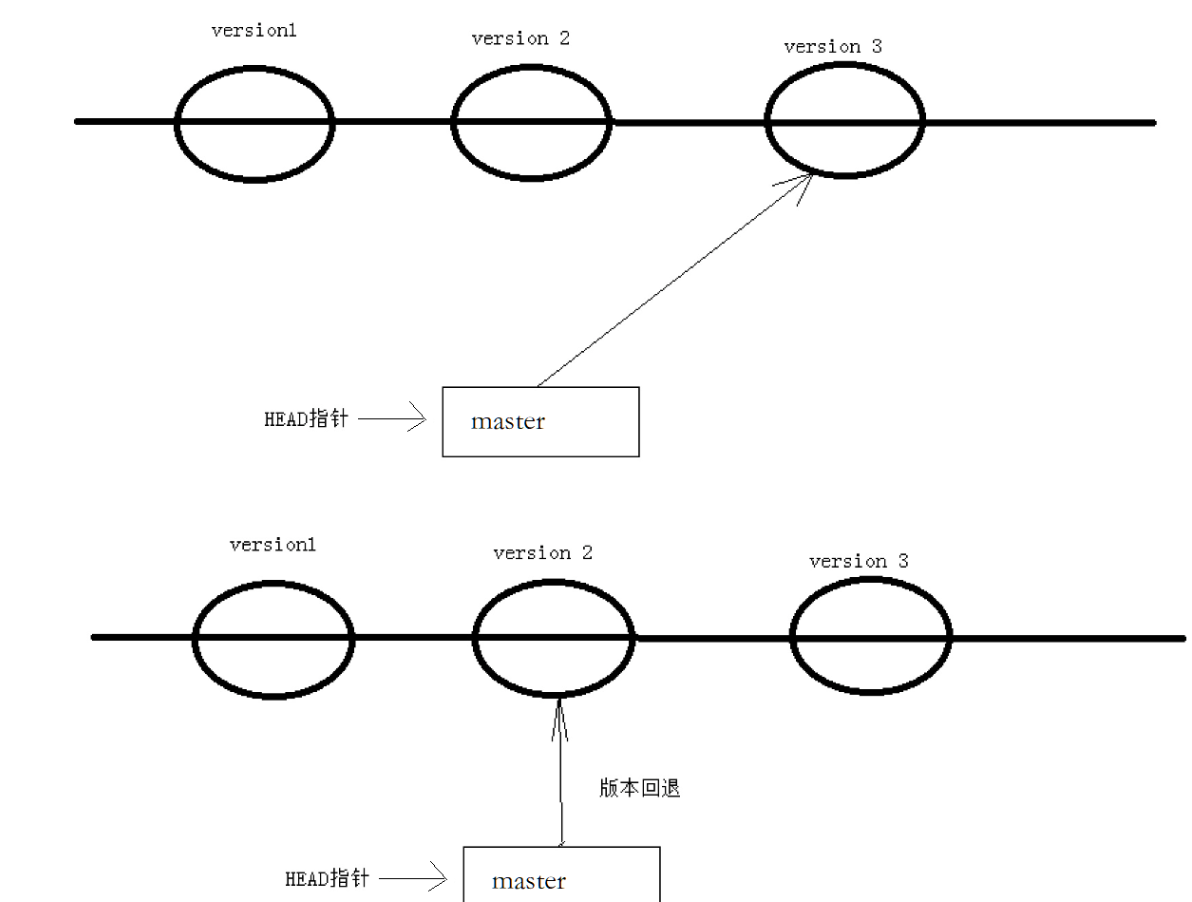
补充: 值得说的是,Git 的版本回退速度⾮常快,因为 Git 在内部有个指向当前分⽀(此处是master)的 HEAD 指针, refs/heads/master ⽂件⾥保存当前 master 分⽀的最新 commit id 。当我们 在回退版本的时候,Git 仅仅是给 refs/heads/master 中存储⼀个特定的version,可以简单理解成如下⽰意图:
1.2 撤退修改
如果我们在我们的⼯作区写了很⻓时间代码,越写越写不下去,觉得⾃⼰写的实在是垃圾,想恢复到 上⼀个版本,这时就需要根据不同场景进行修改
场景一:未git add至暂存区,在工作区
git checkout -- file 命令中的 -- 很重要,切记不要省略,⼀旦省略,该命令就变为其他意思了
友情提示 :千万不要想着用什么 git diff xxx 找到差异去手动删除,那要是改的地方多得删多久啊,这不得累麻了
bash
//向ReadMe新增一行代码
lcb@hcss-ecs-1cde:~/gitcode$ echo "It is shift" >> ReadMe
lcb@hcss-ecs-1cde:~/gitcode$ cat ReadMe
Hello Milestone
Hello world
It is shift
//回退到上一次的git add / git commit
lcb@hcss-ecs-1cde:~/gitcode$ git checkout -- ReadMe
lcb@hcss-ecs-1cde:~/gitcode$ cat ReadMe
Hello Milestone
Hello world
场景二:已经git add到暂存区,但还未commit
add 后还是保存到了暂存区,怎么撤销呢?
bash
//向ReadMe新增一行代码
lcb@hcss-ecs-1cde:~/gitcode$ echo "It is shift" >> ReadMe
lcb@hcss-ecs-1cde:~/gitcode$ cat ReadMe
Hello Milestone
Hello world
It is shift
//提交至暂存区并查看状态
lcb@hcss-ecs-1cde:~/gitcode$ git add ReadMe
lcb@hcss-ecs-1cde:~/gitcode$ git status
On branch master
Changes to be committed:
  (use "git restore --staged <file>..." to unstage)
	modified:   ReadMe
那我们该怎么做呢?我们来回忆一下之前学过的 git reset 回退命令。该命令如果使用 --mixed 参数,可以将暂存区的内容回退到指定的版本内容,但工作区文件保持不变,我们再接着用上面场景一的方法解决一下不就好了。
总的来说就是:先将暂存区修改撤销到工作区,再丢弃工作区修改:
bash
//# 先将暂存区修改撤销到工作区,--mixed 是默认参数,可以省略
lcb@hcss-ecs-1cde:~/gitcode$ git reset HEAD ReadMe
Unstaged changes after reset:
M	ReadMe
lcb@hcss-ecs-1cde:~/gitcode$ git status
On branch master
Changes not staged for commit:
  (use "git add <file>..." to update what will be committed)
  (use "git restore <file>..." to discard changes in working directory)
	modified:   ReadMe

no changes added to commit (use "git add" and/or "git commit -a")
//# 类似于场景一,丢弃工作区的修改
lcb@hcss-ecs-1cde:~/gitcode$ git checkout -- ReadMe
lcb@hcss-ecs-1cde:~/gitcode$ git status
On branch master
nothing to commit, working tree clean
lcb@hcss-ecs-1cde:~/gitcode$ cat ReadMe
Hello Milestone
Hello world
场景三:已经add 和commit到版本库(还未推送至远端)
直接通过 git reset --hard 回退到上一个版本即可。
注意:若已推送(push)到远程仓库,此操作会导致本地与远程版本不一致,需谨慎,这个远程仓库我们在后面会讲的。
bash
//向ReadMe添加一行内容
lcb@hcss-ecs-1cde:~/gitcode$ echo "haha" >> ReadMe
lcb@hcss-ecs-1cde:~/gitcode$ cat ReadMe
Hello Milestone
Hello world
haha
//提交ReadMe
lcb@hcss-ecs-1cde:~/gitcode$ git add ReadMe
lcb@hcss-ecs-1cde:~/gitcode$ git commit -m "test"
[master d854e66] test
 1 file changed, 1 insertion(+)
//将版本回退到上一个版本
lcb@hcss-ecs-1cde:~/gitcode$ git reset --hard HEAD^
HEAD is now at 9abf140 modify ReadMe
lcb@hcss-ecs-1cde:~/gitcode$ cat ReadMe
Hello Milestone
Hello world
二Git文件删除:彻底删除和误删除
在 Git 中,删除文件也是一种 "修改操作",需根据需求选择 "彻底删除" 或 "恢复误删文件":
2.1 误删工作区文件,需要进行回复
bash
lcb@hcss-ecs-1cde:~/gitcode$ ls
file1  file2  file3  ReadMe
lcb@hcss-ecs-1cde:~/gitcode$ rm file1直接这样删除其实是没用的,反而徒增烦恼,git status 命令会立刻告诉你那些文件被删除了;
bash
lcb@hcss-ecs-1cde:~/gitcode$ git status
On branch master
Changes not staged for commit:
  (use "git add/rm <file>..." to update what will be committed)
  (use "git restore <file>..." to discard changes in working directory)
	deleted:    file1

no changes added to commit (use "git add" and/or "git commit -a")
此时,⼯作区和版本库就不⼀致了,要删⽂件,⽬前除了要删⼯作区的⽂件,还要清除版本库的⽂
件. 当然,我们这里如果是误删 ,可以直接使用 git checkout -- file 来进行恢复,之前讲过(删除也是修改)。
bash
lcb@hcss-ecs-1cde:~/gitcode$ git checkout -- file1
lcb@hcss-ecs-1cde:~/gitcode$ ls
file1  file2  file3  ReadMe
2.2 确认删除文件,同步到版本库
bash
//从工作区和暂且区同时删除file1  git rm 文件名
lcb@hcss-ecs-1cde:~/gitcode$ git rm file1
rm 'file1'
lcb@hcss-ecs-1cde:~/gitcode$ git status
On branch master
Changes to be committed:
  (use "git restore --staged <file>..." to unstage)
	deleted:    file1

//提交删除操作到版本库
lcb@hcss-ecs-1cde:~/gitcode$ git commit -m "deleted file1"
[master 8c0bf79] deleted file1
 1 file changed, 0 insertions(+), 0 deletions(-)
 delete mode 100644 file1
lcb@hcss-ecs-1cde:~/gitcode$ git status
On branch master
nothing to commit, working tree clean