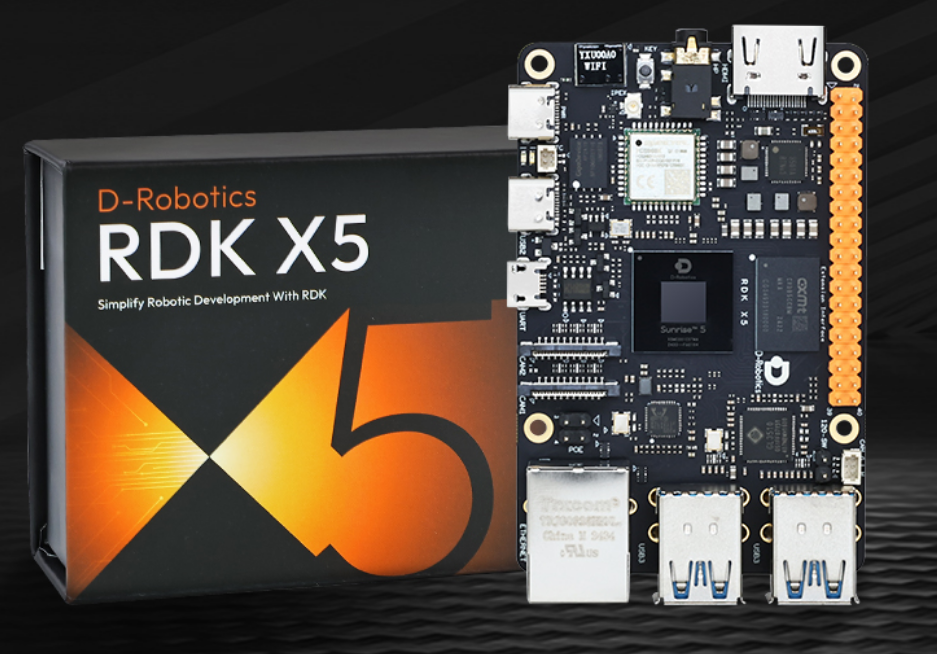
前言
- 自此前几天给项目的车配置了多雷达融合以后,最近又需要进行多摄像头的配置。
- 具体需求是这样的:
- 本项目基于 RDK X5 主控平台,需要支持在不同任务阶段动态切换摄像头输入源,以完成多任务视觉推理需求。
- 具体实现起来其实并不难,要涉及以下三个关键问题:
- RDK X5 的 USB 接口共享同一总线,需要进行带宽规划与控制,避免多摄像头同时高分辨率采集导致带宽瓶颈
- 官方
hobot_usb_cam功能包默认输出 topic 固定,无法直接支持多实例区分,需要借助 ROS2 remapping 实现多路隔离 - 需要手动接收多摄像头信息,并使用零拷贝把当前需要推理的摄像头画面发布给视觉推理节点。
前置知识
0-1 带宽(Bandwidth)
带宽表示通信链路单位时间内可传输的数据量。- 单位一般是:
Mbps(兆比特/秒)Gbps(千兆比特/秒)
- USB 常见理论带宽如下:
| USB版本 | 理论带宽 | 实际可用 |
|---|---|---|
| USB2.0 | 480 Mbps | ~280--320 Mbps |
| USB3.0 | 5 Gbps | ~3--4 Gbps |
0-2 总线(Bus)
总线是多个设备共享的通信通道。- 一条
总线就意味着一条"共享道路",也就是连接在这条总线上的所有设备将共享这条路的带宽 - 这也就意味着,当一条总线上的设备越多的时候,每个设备分到的带宽就会减小,这时候数据的传输就会变拥堵
0-3 共享内存(Shared Memory)
共享内存是一种跨进程高性能数据传输机制,说人话就是"大家一起读写的一块内存区域",不需要拷贝数据。- 特点:
- 不复制数据
- 仅传递引用(handle / metadata)
- 多进程可直接访问同一内存区域
- 显著降低 CPU 开销与延迟
1 多摄像机整合
1-1 v4l2
-
V4L2(Video4Linux2)是 Linux 下的摄像头/视频采集框架接口标准
-
Linux在进行摄像头数据传输到识别的整体框架是这个样子的:摄像头硬件
↓
USB/UVC驱动(uvcvideo)
↓
V4L2内核框架
↓
/dev/videoX 设备节点
↓
OpenCV / ROS / GStreamer -
根据识别摄像机的驱动,V4L2 会把每个视频流暴露成设备文件:
| 设备 | 含义 |
|---|---|
| /dev/video0 | 摄像头A |
| /dev/video1 | 摄像头A的另一个流 |
| /dev/video2 | 摄像头B |
| /dev/video3 | 摄像头B的另一个流 |
- 通常我们可以通过
V4L2c查看当前接在板子上的摄像头信息
bash
v4l2-ctl --list-devices!\[Pasted image 20260501141945.png]
1-2 共享带宽问题
- 我们首先接上两个USB摄像头并查看RDKX5的USB 设备拓扑结构(树状结构)
bash
lsusb -t!\[Pasted image 20260501141830.png]
- 可以看到两个 UVC 摄像头挂在同一条 480M(USB2.0)总线上,并且每个摄像头都是"多接口设备(video + audio)
- 这时候会出现一个问题,这两个摄像头实际上是共享一根USB总线的,这会导致带宽共享,而当我们同时要求两个摄像头进行高帧率高像素进行传输时,会遇到带宽不够的情况,这时候程序就会直接卡死。
1-3 降低带宽占用
1-3-1 格式与分辨率的影响
- USB 摄像头(UVC)有两种传输:
| 类型 | 特点 | 使用上 |
|---|---|---|
| MJPEG | 压缩后传输,占用带宽低 | 推荐 |
| YUYV | 原始数据,带宽占用高) | 不推荐 |
- 我们可以通过
v4l2手动查询每个摄像头支持的格式
bash
v4l2-ctl -d /dev/video0 --list-formats-ext
v4l2-ctl -d /dev/video2 --list-formats-ext- 我们举个例子
| 分辨率 | 格式 | 带宽 |
|---|---|---|
| 640x480@30 | MJPEG | ~20MB/s |
| 640x480@30 | YUYV | ~150MB/s |
- 而上面查到的USB2 总线理论
480Mbps≈60MB/s,也就是如果同时使用YUYV进行双摄像头捕获,必定导致程序卡死。
1-3-2 手动指定分辨率与格式
- 为了解决上述问题,我们可以
V4L2分别指定两个摄像头的频率和捕获格式,达到了USB限制的带宽下能够稳定运行的方案:
bash
v4l2-ctl -d /dev/video0 \
  --set-fmt-video=width=640,height=480,pixelformat=MJPG \
  --set-parm=30

v4l2-ctl -d /dev/video2 \
  --set-fmt-video=width=640,height=480,pixelformat=MJPG \
  --set-parm=30
1-3-3 抓帧测试
- 设置好后,我们分别打开两个终端,分别输入下述指令进行抓帧测试:
bash
v4l2-ctl -d /dev/video0 --stream-mmap --stream-count=300 <<<<<<<<<<<<<<<<<<<<<<<<<<<<<<< 30.04 fps, dropped buffers: 1 <<<<<<<<<<<<<<<<<<<<<<<<<<<<<< 30.08 fps <<<<<<<<<<<<<<<<<<<<<<<<<<<<<< 30.06 fps <<<<<<<<<<<<<<<<<<<<<<<<<<<<<< 30.04 fps <<<<<<<<<<<<<<<<<<<<<<<<<<<<<< 30.03 fps <<<<<<<<<<<<<<<<<<<<<<<<<<<<<< 30.03 fps <<<<<<<<<<<<<<<<<<<<<<<<<<<<<< 30.03 fps <<<<<<<<<<<<<<<<<<<<<<<<<<<<<< 30.02 fps <<<<<<<<<<<<<<<<<<<<<<<<<<<<<< 30.02 fps
v4l2-ctl -d /dev/video2 --stream-mmap --stream-count=300 <<<<<<<<<<<<<<<<<<<<<<<<<<<<<<<< 30.39 fps <<<<<<<<<<<<<<<<<<<<<<<<<<<<<< 30.32 fps <<<<<<<<<<<<<<<<<<<<<<<<<<<<<<< 30.31 fps <<<<<<<<<<<<<<<<<<<<<<<<<<<<<< 30.32 fps <<<<<<<<<<<<<<<<<<<<<<<<<<<<<< 30.31 fps <<<<<<<<<<<<<<<<<<<<<<<<<<<<<< 30.32 fps <<<<<<<<<<<<<<<<<<<<<<<<<<<<<<< 30.31 fps <<<<<<<<<<<<<<<<<<<<<<<<<<<<<< 30.31 fps <<<<<<<<<<<<<<<<<<<<<<<<<<<<<< 30.31 fps- 测试过后,发现两路摄像头均可以正常输出,帧率都在
30fps上下
1-3-4 python代码简单测试
- 配合
v4l2的设置,我们可以简单写一段python代码进行测试
python
import cv2
import time
cap1 = cv2.VideoCapture("/dev/video0", cv2.CAP_V4L2)
cap2 = cv2.VideoCapture("/dev/video2", cv2.CAP_V4L2)
def cam_init(cap):
	cap.set(cv2.CAP_PROP_FOURCC, cv2.VideoWriter_fourcc(*'MJPG'))
	cap.set(cv2.CAP_PROP_FRAME_WIDTH, 640)
	cap.set(cv2.CAP_PROP_FRAME_HEIGHT, 480)
	cap.set(cv2.CAP_PROP_FPS, 30)
	cap.set(cv2.CAP_PROP_BUFFERSIZE, 1)
cam_init(cap1)
cam_init(cap2)
if not cap1.isOpened():
	print("摄像头1打开失败")
	exit()
print("摄像头1打开成功")
if not cap2.isOpened():
	print("摄像头2打开失败")
	exit()
print("摄像头2打开成功")
while True:
	ret1, frame1 = cap1.read()
	if not ret1:
		print("1读取失败")
		break
	print("1 OK")
	ret2, frame2 = cap2.read()
	if not ret2:
		print("2读取失败")
		break
print("2 OK")- 执行后,我们可以发现可以同时捕获两个摄像头。
1-4 GStreamer
- 这里提一嘴GStreamer,GStreamer 是一个开源多媒体框架(media framework),主要用来处理音视频数据流。
- 但是如果需要使用到这个模块需要确保自己的
cv把这个模块编译进去了,可以在终端检测一下:
bash
python -c "import cv2; print(cv2.getBuildInformation())" | grep GStreamer- 由于RDKX5的板端自带的cv并没有部署这个模块,因此这里就不过多赘述。
2 视觉推理全流程解析
2-1 完整代码
-
RDK X5 官方提供标准视觉推理 pipeline:
摄像头 → 图像统一层 → DNN推理 → Web可视化
-
我们可以在
/opt/tros/humble/share/dnn_node_example/launch/dnn_node_example.launch.py中看到其完整的源码:
python
# Copyright (c) 2024,D-Robotics.
#
# Licensed under the Apache License, Version 2.0 (the "License");
# you may not use this file except in compliance with the License.
# You may obtain a copy of the License at
#
#     http://www.apache.org/licenses/LICENSE-2.0
#
# Unless required by applicable law or agreed to in writing, software
# distributed under the License is distributed on an "AS IS" BASIS,
# WITHOUT WARRANTIES OR CONDITIONS OF ANY KIND, either express or implied.
# See the License for the specific language governing permissions and
# limitations under the License.

import os

from launch import LaunchDescription
from launch.actions import DeclareLaunchArgument
from launch.actions import IncludeLaunchDescription
from launch_ros.actions import Node
from launch.substitutions import TextSubstitution
from launch.substitutions import LaunchConfiguration
from launch.launch_description_sources import PythonLaunchDescriptionSource
from ament_index_python import get_package_share_directory
from ament_index_python.packages import get_package_prefix


def generate_launch_description():
    # 拷贝config中文件
    dnn_node_example_path = os.path.join(
        get_package_prefix('dnn_node_example'),
        "lib/dnn_node_example")
    print("dnn_node_example_path is ", dnn_node_example_path)
    cp_cmd = "cp -r " + dnn_node_example_path + "/config ."
    print("cp_cmd is ", cp_cmd)
    os.system(cp_cmd)

    # args that can be set from the command line or a default will be used
    config_file_launch_arg = DeclareLaunchArgument(
        "dnn_example_config_file", default_value=TextSubstitution(text="config/fcosworkconfig.json")
    )
    dump_render_launch_arg = DeclareLaunchArgument(
        "dnn_example_dump_render_img", default_value=TextSubstitution(text="0")
    )
    image_width_launch_arg = DeclareLaunchArgument(
        "dnn_example_image_width", default_value=TextSubstitution(text="960")
    )
    image_height_launch_arg = DeclareLaunchArgument(
        "dnn_example_image_height", default_value=TextSubstitution(text="544")
    )
    msg_pub_topic_name_launch_arg = DeclareLaunchArgument(
        "dnn_example_msg_pub_topic_name", default_value=TextSubstitution(text="hobot_dnn_detection")
    )

    camera_type = os.getenv('CAM_TYPE')
    print("camera_type is ", camera_type)

    cam_node = None
    camera_type_mipi = None
    camera_device_arg = None

    if camera_type == "usb":
        # usb cam图片发布pkg
        usb_cam_device_arg = DeclareLaunchArgument(
            'device',
            default_value='/dev/video8',
            description='usb camera device')

        usb_node = IncludeLaunchDescription(
            PythonLaunchDescriptionSource(
                os.path.join(
                    get_package_share_directory('hobot_usb_cam'),
                    'launch/hobot_usb_cam.launch.py')),
            launch_arguments={
                'usb_image_width': LaunchConfiguration('dnn_example_image_width'),
                'usb_image_height': LaunchConfiguration('dnn_example_image_height'),
                'usb_video_device': LaunchConfiguration('device')
            }.items()
        )
        print("using usb cam")
        cam_node = usb_node
        camera_type_mipi = False
        camera_device_arg = usb_cam_device_arg

    elif camera_type == "fb":
        # 本地图片发布
        feedback_picture_arg = DeclareLaunchArgument(
            'publish_image_source',
            default_value='./config/target.jpg',
            description='feedback picture')

        fb_node = IncludeLaunchDescription(
            PythonLaunchDescriptionSource(
                os.path.join(
                    get_package_share_directory('hobot_image_publisher'),
                    'launch/hobot_image_publisher.launch.py')),
            launch_arguments={
                'publish_image_source': LaunchConfiguration('publish_image_source'),
                'publish_message_topic_name': '/hbmem_img',
                'publish_image_format': 'jpg',
                'publish_fps': '5'
            }.items()
        )

        print("using feedback")
        cam_node = fb_node
        camera_type_mipi = True
        camera_device_arg = feedback_picture_arg

    else:
        if camera_type == "mipi":
            print("using mipi cam")
        else:
            print("invalid camera_type ", camera_type,
                ", which is set with export CAM_TYPE=usb/mipi/fb, using default mipi cam")
        # mipi cam图片发布pkg
        mipi_cam_device_arg = DeclareLaunchArgument(
            'device',
            default_value='F37',
            description='mipi camera device')
        mipi_node = IncludeLaunchDescription(
            PythonLaunchDescriptionSource(
                os.path.join(
                    get_package_share_directory('mipi_cam'),
                    'launch/mipi_cam.launch.py')),
            launch_arguments={
                'mipi_image_width': LaunchConfiguration('dnn_example_image_width'),
                'mipi_image_height': LaunchConfiguration('dnn_example_image_height'),
                'mipi_io_method': 'shared_mem',
                'mipi_frame_ts_type': 'realtime',
                'mipi_video_device': LaunchConfiguration('device')
            }.items()
        )

        cam_node = mipi_node
        camera_type_mipi = True
        camera_device_arg = mipi_cam_device_arg

    # jpeg图片编码&发布pkg
    jpeg_codec_node = IncludeLaunchDescription(
        PythonLaunchDescriptionSource(
            os.path.join(
                get_package_share_directory('hobot_codec'),
                'launch/hobot_codec_encode.launch.py')),
        launch_arguments={
            'codec_in_mode': 'shared_mem',
            'codec_out_mode': 'ros',
            'codec_sub_topic': '/hbmem_img',
            'codec_pub_topic': '/image'
        }.items()
    )

    # nv12图片解码&发布pkg
    nv12_codec_node = IncludeLaunchDescription(
        PythonLaunchDescriptionSource(
            os.path.join(
                get_package_share_directory('hobot_codec'),
                'launch/hobot_codec_decode.launch.py')),
        launch_arguments={
            'codec_in_mode': 'ros',
            'codec_out_mode': 'shared_mem',
            'codec_sub_topic': '/image',
            'codec_pub_topic': '/hbmem_img'
        }.items()
    )

    # web展示pkg
    web_node = IncludeLaunchDescription(
        PythonLaunchDescriptionSource(
            os.path.join(
                get_package_share_directory('websocket'),
                'launch/websocket.launch.py')),
        launch_arguments={
            'websocket_image_topic': '/image',
            'websocket_image_type': 'mjpeg',
            'websocket_smart_topic': LaunchConfiguration("dnn_example_msg_pub_topic_name")
        }.items()
    )

    # 算法pkg
    dnn_node_example_node = Node(
        package='dnn_node_example',
        executable='example',
        output='screen',
        parameters=[
            {"config_file": LaunchConfiguration('dnn_example_config_file')},
            {"dump_render_img": LaunchConfiguration(
                'dnn_example_dump_render_img')},
            {"feed_type": 1},
            {"is_shared_mem_sub": 1},
            {"msg_pub_topic_name": LaunchConfiguration(
                "dnn_example_msg_pub_topic_name")}
        ],
        arguments=['--ros-args', '--log-level', 'warn']
    )

    shared_mem_node = IncludeLaunchDescription(
                PythonLaunchDescriptionSource(
                    os.path.join(
                        get_package_share_directory('hobot_shm'),
                        'launch/hobot_shm.launch.py'))
            )

    if camera_type_mipi:
        return LaunchDescription([
            camera_device_arg,
            config_file_launch_arg,
            dump_render_launch_arg,
            image_width_launch_arg,
            image_height_launch_arg,
            msg_pub_topic_name_launch_arg,
            # 启动零拷贝环境配置node
            shared_mem_node,
            # 图片发布pkg
            cam_node,
            # 图片编解码&发布pkg
            jpeg_codec_node,
            # 启动example pkg
            dnn_node_example_node,
            # 启动web展示pkg
            web_node
        ])
    else:
        return LaunchDescription([
            camera_device_arg,
            config_file_launch_arg,
            dump_render_launch_arg,
            image_width_launch_arg,
            image_height_launch_arg,
            msg_pub_topic_name_launch_arg,
            # 启动零拷贝环境配置node
            shared_mem_node,
            # 图片发布pkg
            cam_node,
            # 图片编解码&发布pkg
            nv12_codec_node,
            # 启动example pkg
            dnn_node_example_node,
            # 启动web展示pkg
            web_node
        ])
2-2 视频帧类型
- 在 RDK X5 的推理节点中,视频帧在不同进程之间的传递主要有两种工作模式,对应不同的数据承载方式与性能特性:
| 模式 | /image 内容 |
数据承载方式 |
|---|---|---|
| 普通 ROS 模式 | sensor_msgs/Image |
图像数据直接随 ROS 消息传递(拷贝传输) |
| shared_mem 模式 | hbmem 引用 + metadata |
图像数据存放在共享内存(HBMEM),ROS 消息仅传递索引/句柄 |
- 在 shared_mem 模式下:
- 图像数据存储于 HBMEM 共享内存
- ROS topic 仅传递引用信息
- 下游节点通过 handle 直接访问内存
/hbmem_img是该机制中的共享内存数据通道,用于在生产者与消费者之间传递图像引用,实现跨进程的数据共享。结合 ROS2 的zero-copy机制,可以避免图像在多个节点间的重复拷贝,从而显著降低 CPU 开销与系统延迟,提高整体推理吞吐性能。- 启用方式:
- 在视觉推理节点中启用
"is_shared_mem_sub":1即可:
- 在视觉推理节点中启用
python
 dnn_node_example_node = Node(
       package='dnn_node_example',
       executable='example',
       output='screen',
       parameters=[
           {"is_shared_mem_sub": 1},
       ],
       arguments=['--ros-args', '--log-level', 'warn']
   )
2-3 流程分析
- 整个系统的核心流程可以概括为:
摄像头输入 → 统一图像格式 → DNN推理 → Web可视化输出
2-3-1 整体数据流
CAM(USB / MIPI / FB)
        ↓
hobot_usb_cam / mipi_cam / image_publisher
        ↓
/hbmem_img(共享内存图像)
        ↓
hobot_codec(格式统一层)
        ↓
/image(ROS标准图像通道)
        ↓
dnn_node_example(AI推理)
        ↓
hobot_dnn_detection(检测结果)
        ↓
websocket(浏览器可视化)
2-3-2 节点功能说明
- 摄像头输出节点
cam_nodehobot_usb_cam:用于 USB 摄像头采集,发布普通数据/imagemipi_cam:用于 MIPI 摄像头采集,发布共享内存数据/hbmem_imgimage_publisher:FB模式下进行本地图像回灌,模拟摄像头输入
- 关键格式转换节点
hobot_codec:encode模式(MIPI / FB):将/hbmem_img → /image,把共享内存信息转换为ROS2话题,提供给 DNN / Web 使用decode模式(USB):将/image → /hbmem_img,把ROS2话题转换为共享内存消息,提供给高性能推理使用
- AI推理节点
dnn_node_example:- 订阅图像信息进行推理:
- 普通模式下,订阅
/image进行推理 - 在
shared_mem模式下,订阅/hbmem_img获取共享内存数据进行推理
- 普通模式下,订阅
- 输出推理结果到
/hobot_dnn_detection
- 订阅图像信息进行推理:
- Web显示节点
websocket:- 订阅
/hobot_dnn_detection:实时视频流显示,同时叠加检测框并进行浏览器可视化
- 订阅
2-4 多摄像头启用
- 需要注意的是RDKX5官方提供的
hobot_usb_cam功能包在源码层面写死了摄像头发布话题为/image,因此在使用多摄像头的时候我们无法直接使用这个功能包。 - 我们需要借助
ROS2的话题重映射功能来对输出的话题进行修改,需要注意的是- ROS2 的 remapping 必须在 Node 启动层级生效
- 以下是推荐的多摄像头启动的
launch文件
python
from launch import LaunchDescription
from launch_ros.actions import Node
from launch.actions import IncludeLaunchDescription
from launch.launch_description_sources import PythonLaunchDescriptionSource
from ament_index_python.packages import get_package_share_directory
import os


def generate_launch_description():

    cam0 = Node(
        package='hobot_usb_cam',
        executable='hobot_usb_cam',
        name='cam0',
        parameters=[{
            'video_device': '/dev/video0',
            'image_width': 640,
            'image_height': 480,
            'frame_rate': 15,
            'pixel_format': 'mjpeg'
        }],
        remappings=[('image', '/cam0/image')]
    )

    cam1 = Node(
        package='hobot_usb_cam',
        executable='hobot_usb_cam',
        name='cam1',
        parameters=[{
            'video_device': '/dev/video2',
            'image_width': 640,
            'image_height': 480,
            'frame_rate': 15,
            'pixel_format': 'mjpeg'
        }],
        remappings=[('image', '/cam1/image')]
    )

    # =========================
    # websocket
    # =========================
    web = IncludeLaunchDescription(
        PythonLaunchDescriptionSource(
            os.path.join(
                get_package_share_directory('websocket'),
                'launch/websocket.launch.py'
            )
        ),
        launch_arguments={

            'websocket_image_topic':  '/cam0/image',
            'websocket_only_show_image': 'True'
        }.items()
    )

    return LaunchDescription([
        cam0,
        cam1,
        web
    ])
2-5 图像订阅与转发
- 通过前文对整条推理链路的梳理可以发现,在当前 RDK X5 的标准 AI pipeline 中,图像流的关键统一入口是:
bash
/image- 我们只需要分别订阅两个不同话题的摄像头,并进行转发即可
- 这里有几个需要注意的点:
- 话题的
Qos - 使用移动语义避免复制产生的拷贝
- 话题的
cpp
#include <rclcpp/rclcpp.hpp>
#include <sensor_msgs/msg/compressed_image.hpp>
#include <std_msgs/msg/bool.hpp>
using std::placeholders::_1;

class CameraCenter : public rclcpp::Node
{
public:
    CameraCenter()
    : Node("camera_center", rclcpp::NodeOptions().use_intra_process_comms(true))
    {


        use_cam0_ = true;


        auto qos = rclcpp::QoS(rclcpp::KeepLast(10)).reliable();


        pub_ = this->create_publisher<sensor_msgs::msg::CompressedImage>(
            "/image", qos);

        sub_cam0_ = this->create_subscription<sensor_msgs::msg::CompressedImage>(
            "/cam0/image", qos,
            std::bind(&CameraCenter::cam0_callback, this, _1));

        sub_cam1_ = this->create_subscription<sensor_msgs::msg::CompressedImage>(
            "/cam1/image", qos,
            std::bind(&CameraCenter::cam1_callback, this, _1));
        sub_switch_ = this->create_subscription<std_msgs::msg::Bool>(
            "/switch_camera",
            10,
            std::bind(&CameraCenter::switch_callback, this, _1)
        );
        RCLCPP_INFO(this->get_logger(), "CameraCenter started");
    }

private:

    void cam0_callback(sensor_msgs::msg::CompressedImage::UniquePtr msg)
    {
        if (use_cam0_) {
            pub_->publish(std::move(msg));
        }
    }

    void cam1_callback(sensor_msgs::msg::CompressedImage::UniquePtr msg)
    {
        if (!use_cam0_) {
            pub_->publish(std::move(msg));
        }
    }
    void switch_callback(const std_msgs::msg::Bool::SharedPtr msg)
    {
        use_cam0_ = msg->data;

        RCLCPP_INFO(this->get_logger(),
            "Switch camera -> %s",
            use_cam0_ ? "cam0" : "cam1");
    }
private:
    bool use_cam0_;

    rclcpp::Publisher<sensor_msgs::msg::CompressedImage>::SharedPtr pub_;
    rclcpp::Subscription<sensor_msgs::msg::CompressedImage>::SharedPtr sub_cam0_;
    rclcpp::Subscription<sensor_msgs::msg::CompressedImage>::SharedPtr sub_cam1_;
    rclcpp::Subscription<std_msgs::msg::Bool>::SharedPtr sub_switch_;
};
#include "rclcpp/rclcpp.hpp"

int main(int argc, char ** argv)
{
    rclcpp::init(argc, argv);

    auto node = std::make_shared<CameraCenter>();

    rclcpp::spin(node);
    rclcpp::shutdown();
    return 0;
}- 切换到
cam0
bash
ros2 topic pub /switch_camera std_msgs/msg/Bool "{data: true}" -1- 切换到
cam1
bash
ros2 topic pub /switch_camera std_msgs/msg/Bool "{data: false}" -12-6 完整代码
- 我们把多摄像头启动和转发和之前的推理节点合并在一起:
python
# Copyright (c) 2024,D-Robotics.
#
# Licensed under the Apache License, Version 2.0 (the "License");
# you may not use this file except in compliance with the License.
# You may obtain a copy of the License at
#
#     http://www.apache.org/licenses/LICENSE-2.0
#
# Unless required by applicable law or agreed to in writing, software
# distributed under the License is distributed on an "AS IS" BASIS,
# WITHOUT WARRANTIES OR CONDITIONS OF ANY KIND, either express or implied.
# See the License for the specific language governing permissions and
# limitations under the License.

import os

from launch import LaunchDescription
from launch.actions import DeclareLaunchArgument
from launch.actions import IncludeLaunchDescription
from launch_ros.actions import Node
from launch.substitutions import TextSubstitution
from launch.substitutions import LaunchConfiguration
from launch.launch_description_sources import PythonLaunchDescriptionSource
from ament_index_python import get_package_share_directory
from ament_index_python.packages import get_package_prefix


def generate_launch_description():
    # 拷贝config中文件
    dnn_node_example_path = os.path.join(
        get_package_prefix('dnn_node_example'),
        "lib/dnn_node_example")
    print("dnn_node_example_path is ", dnn_node_example_path)
    cp_cmd = "cp -r " + dnn_node_example_path + "/config ."
    print("cp_cmd is ", cp_cmd)
    os.system(cp_cmd)

    # args that can be set from the command line or a default will be used
    config_file_launch_arg = DeclareLaunchArgument(
        "dnn_example_config_file", default_value=TextSubstitution(text="/root/Terra_ws/src/visual_center/config/my_yolov8_config.json")
    )
    dump_render_launch_arg = DeclareLaunchArgument(
        "dnn_example_dump_render_img", default_value=TextSubstitution(text="0")
    )
    image_width_launch_arg = DeclareLaunchArgument(
        "dnn_example_image_width", default_value=TextSubstitution(text="960")
    )
    image_height_launch_arg = DeclareLaunchArgument(
        "dnn_example_image_height", default_value=TextSubstitution(text="544")
    )
    msg_pub_topic_name_launch_arg = DeclareLaunchArgument(
        "dnn_example_msg_pub_topic_name", default_value=TextSubstitution(text="hobot_dnn_detection")
    )

    camera_type = os.getenv('CAM_TYPE')
    print("camera_type is ", camera_type)


    cam0_node = Node(
        package='hobot_usb_cam',
        executable='hobot_usb_cam',
        name='cam0',
        parameters=[{
            'video_device': '/dev/video0',
            'image_width': 640,
            'image_height': 480,
            'frame_rate': 15,
            'pixel_format': 'mjpeg'
        }],
        remappings=[('image', '/cam0/image')]
    )

    cam1_node = Node(
        package='hobot_usb_cam',
        executable='hobot_usb_cam',
        name='cam1',
        parameters=[{
            'video_device': '/dev/video2',
            'image_width': 640,
            'image_height': 480,
            'frame_rate': 15,
            'pixel_format': 'mjpeg'
        }],
        remappings=[('image', '/cam1/image')]
    )


    # 填加我的camera_center节点
    camera_center_node = Node(
        package='visual_center',          # 你的包名
        executable='camera_center',       # 你编译出来的节点名
        name='camera_center',
        output='screen'
    )

    # nv12图片解码&发布pkg
    nv12_codec_node = IncludeLaunchDescription(
        PythonLaunchDescriptionSource(
            os.path.join(
                get_package_share_directory('hobot_codec'),
                'launch/hobot_codec_decode.launch.py')),
        launch_arguments={
            'codec_in_mode': 'ros',
            'codec_out_mode': 'shared_mem',
            'codec_sub_topic': '/image',
            'codec_pub_topic': '/hbmem_img'
        }.items()
    )

    # web展示pkg
    web_node = IncludeLaunchDescription(
        PythonLaunchDescriptionSource(
            os.path.join(
                get_package_share_directory('websocket'),
                'launch/websocket.launch.py')),
        launch_arguments={
            'websocket_image_topic': '/image',
            'websocket_image_type': 'mjpeg',
            'websocket_smart_topic': LaunchConfiguration("dnn_example_msg_pub_topic_name")
        }.items()
    )

    # 算法pkg
    dnn_node_example_node = Node(
        package='dnn_node_example',
        executable='example',
        output='screen',
        parameters=[
            {"config_file": LaunchConfiguration('dnn_example_config_file')},
            {"dump_render_img": LaunchConfiguration(
                'dnn_example_dump_render_img')},
            {"feed_type": 1},
            {"is_shared_mem_sub": 1},
            {"msg_pub_topic_name": LaunchConfiguration(
                "dnn_example_msg_pub_topic_name")}
        ],
        arguments=['--ros-args', '--log-level', 'warn']
    )

    shared_mem_node = IncludeLaunchDescription(
                PythonLaunchDescriptionSource(
                    os.path.join(
                        get_package_share_directory('hobot_shm'),
                        'launch/hobot_shm.launch.py'))
            )


    return LaunchDescription([
        config_file_launch_arg,
        dump_render_launch_arg,
        image_width_launch_arg,
        image_height_launch_arg,
        msg_pub_topic_name_launch_arg,
        # 启动零拷贝环境配置node
        shared_mem_node,
        # 图片发布pkg
        cam0_node,
        cam1_node,
        camera_center_node,
        # 图片编解码&发布pkg
        nv12_codec_node,
        # 启动example pkg
        dnn_node_example_node,
        # 启动web展示pkg
        web_node
    ])
小结
- 本文介绍了在 RDK X5 上实现多摄像头视觉推理的方法:通过 V4L2 控制带宽解决 USB 共享问题,利用 ROS2 remapping 区分多路摄像头,并用中间调度节点实现输入源动态切换;结合 shared memory 零拷贝与 codec 转换,完成"多摄像头采集 → 统一推理入口 → DNN 推理 → Web 显示"的低延迟视觉处理流程。
- 如有错误,欢迎指出!
- 感谢观看