在deepseek的帮助下进行了Ubuntu240403上VideoPipe环境的搭建,记录如下:
VideoPipe环境基础要求:
● C++ 17
● OpenCV >= 4.6
● GStreamer 1.14.5 (Required by OpenCV)
● GCC >= 7.5
本篇文章的所有脚本在如下资源可自由下载VideoPipe环境搭建及编译ubuntu240403
https://download.csdn.net/download/yhb1206/92617457
1 查看环境
折腾一番才发现,Ubuntu240403默认都装好了,可以执行如下sh脚本看下依赖是否都具备了,可以vim s1-test.sh脚本,复制如下内容:
bash
#!/bin/bash
set -e

cat > test_opencv_gst.cpp << 'EOF'
#include <opencv2/opencv.hpp>
#include <opencv2/videoio.hpp>
#include <opencv2/videoio/registry.hpp>
#include <iostream>

int main() {
    std::cout << "OpenCV version: " << CV_VERSION << std::endl;

    // OpenCV 4.6.0 检查 GStreamer 支持的正确方式
    #if CV_VERSION_MAJOR >= 4 && CV_VERSION_MINOR >= 6
    // 方法1: 使用新的 videoio_registry
    std::cout << "Checking GStreamer support (new method)..." << std::endl;
    #endif

    // 方法2: 直接尝试打开 GStreamer 管道
    std::cout << "\nTesting GStreamer pipeline directly..." << std::endl;
    std::string pipeline = "videotestsrc num-buffers=1 ! videoconvert ! appsink";

    // 尝试不同的后端
    cv::VideoCapture cap;

    // 先尝试自动检测
    cap.open(pipeline, cv::CAP_ANY);
    if (cap.isOpened()) {
        std::cout << "✓ VideoCapture opened successfully (auto-detected backend)" << std::endl;
        cap.release();
    } else {
        std::cout << "✗ Auto-detection failed" << std::endl;
    }

    // 尝试指定 GStreamer
    cap.open(pipeline, cv::CAP_GSTREAMER);
    if (cap.isOpened()) {
        std::cout << "✓ GStreamer backend: WORKING" << std::endl;
        cap.release();
    } else {
        std::cout << "✗ GStreamer backend: NOT WORKING" << std::endl;
    }

    // 修正 FFmpeg 测试:FFmpeg 主要用于文件,不是实时管道
    std::cout << "\nTesting FFmpeg backend (corrected method)..." << std::endl;

    // 方法1: 检查 FFmpeg 后端是否可用
    bool ffmpeg_supported = cv::videoio_registry::hasBackend(cv::CAP_FFMPEG);
    std::cout << "FFmpeg backend available: " << (ffmpeg_supported ? "YES" : "NO") << std::endl;

    // 方法2: 测试 FFmpeg 文件读写能力(FFmpeg 的主要用途)
    std::cout << "Testing FFmpeg file I/O capability..." << std::endl;

    // 创建测试图像
    cv::Mat test_frame(100, 100, CV_8UC3, cv::Scalar(0, 255, 0));
    std::string test_file = "ffmpeg_test.jpg";

    // 测试图像保存(使用 FFmpeg 如果可用)
    if (cv::imwrite(test_file, test_frame)) {
        std::cout << "✓ Image write successful" << std::endl;

        // 测试图像读取
        cv::Mat read_frame = cv::imread(test_file);
        if (!read_frame.empty()) {
            std::cout << "✓ Image read successful: " << read_frame.cols << "x" << read_frame.rows << std::endl;
            std::cout << "✓ FFmpeg backend: WORKING (file I/O)" << std::endl;
        } else {
            std::cout << "✗ Image read failed" << std::endl;
            std::cout << "✗ FFmpeg backend: LIMITED (read failed)" << std::endl;
        }

        // 清理测试文件
        remove(test_file.c_str());
    } else {
        std::cout << "✗ Image write failed" << std::endl;
        std::cout << "✗ FFmpeg backend: NOT WORKING" << std::endl;
    }

    // 方法3: 测试视频文件支持(FFmpeg 的核心功能)
    std::cout << "\nTesting video file support..." << std::endl;
    cv::VideoWriter writer;
    bool can_write = writer.open("test_video.avi",
                                cv::VideoWriter::fourcc('M','J','P','G'),
                                30, cv::Size(640, 480), true);

    if (can_write) {
        std::cout << "✓ Video writing supported" << std::endl;
        writer.release();
        remove("test_video.avi");
    } else {
        std::cout << "✗ Video writing not supported" << std::endl;
    }

    // 获取编译信息
    std::cout << "\n=== OpenCV Build Information ===" << std::endl;
    std::string buildInfo = cv::getBuildInformation();

    // 提取关键信息
    std::stringstream ss(buildInfo);
    std::string line;
    int gstCount = 0;
    int ffmpegCount = 0;

    while (std::getline(ss, line) && (gstCount < 5 || ffmpegCount < 5)) {
        if (line.find("GStreamer") != std::string::npos) {
            std::cout << line << std::endl;
            gstCount++;
        } else if (line.find("FFMPEG") != std::string::npos ||
                  line.find("FFmpeg") != std::string::npos ||
                  line.find("ffmpeg") != std::string::npos) {
            std::cout << line << std::endl;
            ffmpegCount++;
        } else if (line.find("Video I/O") != std::string::npos) {
            std::cout << line << std::endl;
        }
    }

    return 0;
}
EOF

# 编译测试
echo "=== 编译测试程序 ==="
g++ -o test_opencv_gst test_opencv_gst.cpp \
    $(pkg-config --cflags --libs opencv4) \
    -std=c++11

echo -e "\n=== 运行测试 ==="
./test_opencv_gst

# 清理
rm -f test_opencv_gst test_opencv_gst.cpp
执行./test.sh后,我的如下结果:
c
./s1-test.sh
=== 编译测试程序 ===

=== 运行测试 ===
OpenCV version: 4.6.0
Checking GStreamer support (new method)...

Testing GStreamer pipeline directly...
[ WARN:0@0.020] global ./modules/videoio/src/cap_gstreamer.cpp (1405) open OpenCV | GStreamer warning: Cannot query video position: status=1, value=0, duration=-1
✓ VideoCapture opened successfully (auto-detected backend)
[ WARN:0@0.024] global ./modules/videoio/src/cap_gstreamer.cpp (1405) open OpenCV | GStreamer warning: Cannot query video position: status=1, value=0, duration=-1
✓ GStreamer backend: WORKING

Testing FFmpeg backend (corrected method)...
FFmpeg backend available: YES
Testing FFmpeg file I/O capability...
✓ Image write successful
✓ Image read successful: 100x100
✓ FFmpeg backend: WORKING (file I/O)

Testing video file support...
✓ Video writing supported

=== OpenCV Build Information ===
  Video I/O:
    FFMPEG:                      YES
    GStreamer:                   YES (1.24.1)
有了大模型就是爽:
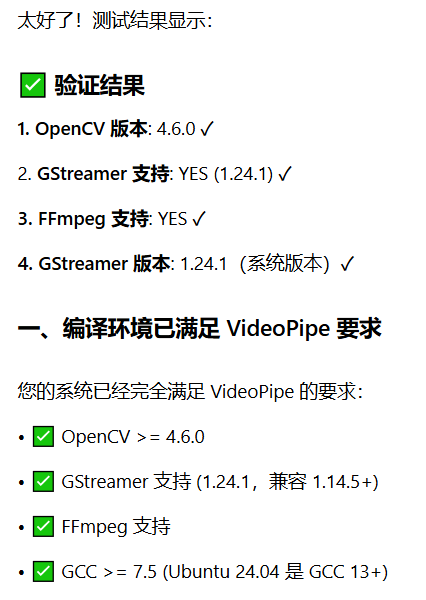
2 安装编译videoPipe必要的开发包
接下来安装编译videoPipe必要的开发包,vim s2-install_videopipe_package.sh复制如下内容:
bash
#!/bin/bash
set -e

echo "=== 安装 VideoPipe 依赖包 ==="

# 更新包列表
sudo apt-get update

# 安装开发工具和编译依赖
sudo apt-get install -y \
    build-essential \
    cmake \
    git \
    wget \
    curl \
    pkg-config \
    ninja-build \
    meson

# 安装 OpenCV 开发包
sudo apt-get install -y \
    libopencv-dev \
    libopencv-core-dev \
    libopencv-videoio-dev \
    libopencv-highgui-dev \
    libopencv-imgproc-dev \
    python3-opencv

# 安装 GStreamer 开发包
sudo apt-get install -y \
    libgstreamer1.0-dev \
    libgstreamer-plugins-base1.0-dev \
    libgstreamer-plugins-good1.0-dev \
    gstreamer1.0-plugins-base \
    gstreamer1.0-plugins-good \
    gstreamer1.0-plugins-bad \
    gstreamer1.0-plugins-ugly \
    gstreamer1.0-libav

# 安装 FFmpeg 开发包
sudo apt-get install -y \
    libavcodec-dev \
    libavformat-dev \
    libavutil-dev \
    libswscale-dev \
    libswresample-dev \
    libavdevice-dev \
    libavfilter-dev \
    libpostproc-dev

# 安装视频编码库
sudo apt-get install -y \
    libx264-dev \
    libx265-dev \
    libvpx-dev \
    libfdk-aac-dev

# 安装音频编码库
sudo apt-get install -y \
    libmp3lame-dev \
    libopus-dev \
    libvorbis-dev

# 安装gstrtspserver
sudo apt-get install -y \
    libgstrtspserver-1.0-dev \
    gstreamer1.0-rtsp \
    libgstrtspserver-1.0-0

# 安装其他依赖
sudo apt-get install -y \
    libgtk-3-dev \
    libcurl4-openssl-dev \
    libboost-all-dev \
    libtbb-dev \
    libeigen3-dev

echo "=== 安装完成 ==="

# 验证安装
echo "=== 验证安装结果 ==="
pkg-config --exists opencv4 && echo "✓ OpenCV 4 已安装" || echo "✗ OpenCV 4 未找到"
pkg-config --exists gstreamer-1.0 && echo "✓ GStreamer 已安装" || echo "✗ GStreamer 未找到"
pkg-config --exists libavcodec && echo "✓ FFmpeg 已安装" || echo "✗ FFmpeg 未找到"
pkg-config --exists gstreamer-rtsp-server-1.0 && echo "✓ RTSP 服务器包安装成功"

which cmake && echo "✓ CMake 已安装" || echo "✗ CMake 未找到"
which g++ && echo "✓ G++ 已安装" || echo "✗ G++ 未找到"
安装成功后,验证下,如下验证脚本,vim s3-varify_package.sh
bash
# 验证包是否安装成功
echo "=== 验证包安装 ==="
dpkg -l | grep -E "libopencv|gstreamer|libav" | head -10

# 验证 pkg-config
echo "=== 验证 pkg-config ==="
pkg-config --cflags --libs opencv4 2>/dev/null && echo "✓ OpenCV pkg-config 正常" || echo "✗ OpenCV pkg-config 异常"
pkg-config --cflags --libs gstreamer-1.0 2>/dev/null && echo "✓ GStreamer pkg-config 正常" || echo "✗ GStreamer pkg-config 异常"

# 验证命令行工具
echo "=== 验证命令行工具 ==="
cmake --version && echo "✓ CMake 正常"
g++ --version && echo "✓ G++ 正常"
gst-launch-1.0 --version && echo "✓ GStreamer 正常"
这是我的验证结果
c
root@yhb-VMware-Virtual-Platform:/share/code/videopipe/install# ./s3-varify_package.sh
=== 验证包安装 ===
ii  gir1.2-gstreamer-1.0:amd64                     1.24.2-1ubuntu0.1                        amd64        GObject introspection data for the GStreamer library
ii  gstreamer1.0-alsa:amd64                        1.24.2-1ubuntu0.3                        amd64        GStreamer plugin for ALSA
ii  gstreamer1.0-gl:amd64                          1.24.2-1ubuntu0.3                        amd64        GStreamer plugins for GL
ii  gstreamer1.0-libav:amd64                       1.24.1-1build1                           amd64        ffmpeg plugin for GStreamer
ii  gstreamer1.0-packagekit                        1.2.8-2ubuntu1.2                         amd64        GStreamer plugin to install codecs using PackageKit
ii  gstreamer1.0-pipewire:amd64                    1.0.5-1ubuntu3.1                         amd64        GStreamer 1.0 plugin for the PipeWire multimedia server
ii  gstreamer1.0-plugins-bad:amd64                 1.24.2-1ubuntu4                          amd64        GStreamer plugins from the "bad" set
ii  gstreamer1.0-plugins-base:amd64                1.24.2-1ubuntu0.3                        amd64        GStreamer plugins from the "base" set
ii  gstreamer1.0-plugins-base-apps                 1.24.2-1ubuntu0.3                        amd64        GStreamer helper programs from the "base" set
ii  gstreamer1.0-plugins-good:amd64                1.24.2-1ubuntu1.2                        amd64        GStreamer plugins from the "good" set
=== 验证 pkg-config ===
-I/usr/include/opencv4 -lopencv_stitching -lopencv_alphamat -lopencv_aruco -lopencv_barcode -lopencv_bgsegm -lopencv_bioinspired -lopencv_ccalib -lopencv_cvv -lopencv_dnn_objdetect -lopencv_dnn_superres -lopencv_dpm -lopencv_face -lopencv_freetype -lopencv_fuzzy -lopencv_hdf -lopencv_hfs -lopencv_img_hash -lopencv_intensity_transform -lopencv_line_descriptor -lopencv_mcc -lopencv_quality -lopencv_rapid -lopencv_reg -lopencv_rgbd -lopencv_saliency -lopencv_shape -lopencv_stereo -lopencv_structured_light -lopencv_phase_unwrapping -lopencv_superres -lopencv_optflow -lopencv_surface_matching -lopencv_tracking -lopencv_highgui -lopencv_datasets -lopencv_text -lopencv_plot -lopencv_ml -lopencv_videostab -lopencv_videoio -lopencv_viz -lopencv_wechat_qrcode -lopencv_ximgproc -lopencv_video -lopencv_xobjdetect -lopencv_objdetect -lopencv_calib3d -lopencv_imgcodecs -lopencv_features2d -lopencv_dnn -lopencv_flann -lopencv_xphoto -lopencv_photo -lopencv_imgproc -lopencv_core
✓ OpenCV pkg-config 正常
-I/usr/include/gstreamer-1.0 -I/usr/include/glib-2.0 -I/usr/lib/x86_64-linux-gnu/glib-2.0/include -pthread -I/usr/include/x86_64-linux-gnu -lgstreamer-1.0 -lgobject-2.0 -lglib-2.0
✓ GStreamer pkg-config 正常
=== 验证命令行工具 ===
cmake version 3.28.3

CMake suite maintained and supported by Kitware (kitware.com/cmake).
✓ CMake 正常
g++ (Ubuntu 13.3.0-6ubuntu2~24.04) 13.3.0
Copyright (C) 2023 Free Software Foundation, Inc.
This is free software; see the source for copying conditions.  There is NO
warranty; not even for MERCHANTABILITY or FITNESS FOR A PARTICULAR PURPOSE.

✓ G++ 正常
gst-launch-1.0 version 1.24.2
GStreamer 1.24.2
https://launchpad.net/ubuntu/+source/gstreamer1.0
✓ GStreamer 正常
3 编译环境测试
复制如下sh脚本:
bash
cat > final_fix_compile.sh << 'EOF'
#!/bin/bash
echo "=== 完整修复编译测试 ==="
# 安装缺失的开发包
echo "1. 安装缺失的开发包..."
sudo apt-get install -y \
libglib2.0-dev \
libgstreamer-plugins-base1.0-dev
cat > final_test.cpp << 'FINAL_EOF'
#include <iostream>
// 正确的头文件包含顺序
#include <glib.h> // 必须先包含 GLib
extern "C" {
#include <libavutil/avutil.h>
#include <libavcodec/avcodec.h>
}
#include <opencv2/opencv.hpp>
#include <gst/gst.h>
int main() {
std::cout << "=== 完整修复测试 ===\n";
// OpenCV
std::cout << "OpenCV 版本: " << CV_VERSION << "\n";
// GStreamer
gst_init(NULL, NULL);
guint major, minor, micro, nano;
gst_version(&major, &minor, µ, &nano);
std::cout << "GStreamer 版本: " << major << "." << minor << "." << micro << "\n";
// FFmpeg
std::cout << "FFmpeg 版本: " << av_version_info() << "\n";
std::cout << "✓ 所有依赖库编译测试通过\n";
return 0;
}
FINAL_EOF
echo "2. 使用正确的编译标志..."
# 方法1:添加必需的宏定义
g++ -o final_test final_test.cpp \
-D__STDC_CONSTANT_MACROS \
-D__STDC_FORMAT_MACROS \
$(pkg-config --cflags --libs opencv4 gstreamer-1.0 glib-2.0) \
-lavcodec -lavutil -lavformat -lswscale -lswresample \
-std=c++17
if [ $? -eq 0 ]; then
echo "✓ 编译成功"
./final_test
else
echo "✗ 方法1失败,尝试方法2..."
# 方法2:更详细的编译命令
echo "3. 尝试方法2:详细编译参数..."
g++ -o final_test final_test.cpp \
-D__STDC_CONSTANT_MACROS \
-D__STDC_FORMAT_MACROS \
-I/usr/include/opencv4 \
-I/usr/include/gstreamer-1.0 \
-I/usr/include/glib-2.0 \
-I/usr/lib/x86_64-linux-gnu/glib-2.0/include \
-I/usr/include/x86_64-linux-gnu \
-lopencv_core -lopencv_highgui -lopencv_videoio \
-lgstreamer-1.0 -lgstbase-1.0 -lgobject-2.0 -lglib-2.0 \
-lavcodec -lavutil -lavformat -lswscale -lswresample \
-std=c++17
if [ $? -eq 0 ]; then
echo "✓ 编译成功"
./final_test
else
echo "✗ 方法2失败,尝试简化测试..."
# 方法3:分步测试
echo "4. 分步测试各组件..."
# 测试 FFmpeg
cat > test_ffmpeg_only.cpp << 'FFMPEG_EOF'
#include <iostream>
#define __STDC_CONSTANT_MACROS
#define __STDC_FORMAT_MACROS
extern "C" {
#include <libavutil/avutil.h>
}
int main() {
std::cout << "FFmpeg 版本: " << av_version_info() << std::endl;
return 0;
}
FFMPEG_EOF
g++ -o test_ffmpeg test_ffmpeg_only.cpp \
-D__STDC_CONSTANT_MACROS \
-D__STDC_FORMAT_MACROS \
-lavutil && echo "✓ FFmpeg 测试通过" && ./test_ffmpeg
# 测试 GStreamer
cat > test_gstreamer_only.cpp << 'GST_EOF'
#include <iostream>
#include <glib.h>
#include <gst/gst.h>
int main() {
gst_init(NULL, NULL);
guint major, minor, micro, nano;
gst_version(&major, &minor, µ, &nano);
std::cout << "GStreamer 版本: " << major << "." << minor << "." << micro << std::endl;
return 0;
}
GST_EOF
g++ -o test_gstreamer test_gstreamer_only.cpp \
$(pkg-config --cflags --libs gstreamer-1.0 glib-2.0) && \
echo "✓ GStreamer 测试通过" && ./test_gstreamer
fi
fi
EOF
chmod +x final_fix_compile.sh
./final_fix_compile.sh如下结果:
c
./s4-test-compile-env.sh
=== 完整修复编译测试 ===
1. 安装缺失的开发包...
正在读取软件包列表... 完成
正在分析软件包的依赖关系树... 完成
正在读取状态信息... 完成
libglib2.0-dev 已经是最新版 (2.80.0-6ubuntu3.7)。
libglib2.0-dev 已设置为手动安装。
libgstreamer-plugins-base1.0-dev 已经是最新版 (1.24.2-1ubuntu0.3)。
下列软件包是自动安装的并且现在不需要了:
  libllvm19
使用'sudo apt autoremove'来卸载它(它们)。
升级了 0 个软件包,新安装了 0 个软件包,要卸载 0 个软件包,有 125 个软件包未被升级。
2. 使用正确的编译标志...
✓ 编译成功
=== 完整修复测试 ===
OpenCV 版本: 4.6.0
GStreamer 版本: 1.24.2
FFmpeg 版本: 6.1.1-3ubuntu5
✓ 所有依赖库编译测试通过
4.编译VideoPipe
4.1 下载videpipe源码
git clone https://github.com/sherlockchou86/VideoPipe.git
我是用国内的gitee我之前从github上同步过来的进行下载:
git clone https://gitee.com/lure_ai/VideoPipe.git
4.2 编译
vim compile.sh复制如下脚本内容生成编译脚本s4-test-compile-env.sh:
bash
#!/bin/bash
echo "=== VideoPipe 完整编译配置脚本 ==="

# 设置编译环境
export PKG_CONFIG_PATH=/usr/lib/x86_64-linux-gnu/pkgconfig:$PKG_CONFIG_PATH
export CXXFLAGS="-D__STDC_CONSTANT_MACROS -D__STDC_FORMAT_MACROS"
export LD_LIBRARY_PATH=/usr/local/lib:/usr/lib/x86_64-linux-gnu:$LD_LIBRARY_PATH

# 检查目录
if [ -f "CMakeLists.txt" ] && [ -d "nodes" ]; then
    echo "✓ 在 VideoPipe 根目录"
    VP_DIR="."
elif [ -d "VideoPipe" ] && [ -f "VideoPipe/CMakeLists.txt" ]; then
    echo "✓ 检测到 VideoPipe 子目录"
    VP_DIR="VideoPipe"
    cd "$VP_DIR"
else
    echo "错误: 未找到 VideoPipe 项目"
    exit 1
fi

echo "工作目录: $(pwd)"

# 清理并创建构建目录
echo "准备构建环境..."
rm -rf build
mkdir build && cd build

# 显示可用的编译选项
echo "=== 可用的编译选项 ==="
echo "根据 README.md,VideoPipe 支持以下选项:"
echo "-DVP_WITH_CUDA=ON          # CUDA 支持"
echo "-DVP_WITH_TRT=ON           # TensorRT 支持"
echo "-DVP_WITH_PADDLE=ON        # PaddlePaddle 支持"
echo "-DVP_WITH_KAFKA=ON         # Kafka 支持"
echo "-DVP_WITH_LLM=ON           # LLM 支持"
echo "-DVP_BUILD_COMPLEX_SAMPLES=ON  # 高级示例"

# 用户选择配置模式
echo ""
echo "请选择配置模式:"
echo "1) 完整配置(启用所有功能)"
echo "2) 基础配置(仅 CPU 模式)"
echo "3) 自定义配置"
read -p "请输入选择 (1/2/3): " config_choice

case $config_choice in
    1)
        # 完整配置 - 启用所有功能
        echo "选择:完整配置"
        CMAKE_OPTIONS="\
            -D CMAKE_BUILD_TYPE=Release \
            -D CMAKE_CXX_STANDARD=17 \
            -D CMAKE_CXX_FLAGS=\"-D__STDC_CONSTANT_MACROS -D__STDC_FORMAT_MACROS\" \
            -D WITH_OPENCV=ON \
            -D WITH_GSTREAMER=ON \
            -D WITH_FFMPEG=ON \
            -D VP_WITH_CUDA=ON \
            -D VP_WITH_TRT=ON \
            -D VP_WITH_PADDLE=ON \
            -D VP_WITH_KAFKA=ON \
            -D VP_WITH_LLM=ON \
            -D VP_BUILD_COMPLEX_SAMPLES=ON \
            -D BUILD_EXAMPLES=ON"
        ;;
    2)
        # 基础配置 - 仅 CPU 模式
        echo "选择:基础配置"
        CMAKE_OPTIONS="\
            -D CMAKE_BUILD_TYPE=Release \
            -D CMAKE_CXX_STANDARD=17 \
            -D CMAKE_CXX_FLAGS=\"-D__STDC_CONSTANT_MACROS -D__STDC_FORMAT_MACROS\" \
            -D WITH_OPENCV=ON \
            -D WITH_GSTREAMER=ON \
            -D WITH_FFMPEG=ON \
            -D BUILD_EXAMPLES=ON \
	    -D BUILD_TESTS=ON"
        ;;
    3)
        # 自定义配置
        echo "选择:自定义配置"
        read -p "启用 CUDA 支持? (y/n): " enable_cuda
        read -p "启用 TensorRT 支持? (y/n): " enable_trt
        read -p "启用 PaddlePaddle 支持? (y/n): " enable_paddle
        read -p "启用 Kafka 支持? (y/n): " enable_kafka
        read -p "启用 LLM 支持? (y/n): " enable_llm
        read -p "启用高级示例? (y/n): " enable_complex

        CMAKE_OPTIONS="-D CMAKE_BUILD_TYPE=Release -D CMAKE_CXX_STANDARD=17"

        [ "$enable_cuda" = "y" ] && CMAKE_OPTIONS="$CMAKE_OPTIONS -D VP_WITH_CUDA=ON"
        [ "$enable_trt" = "y" ] && CMAKE_OPTIONS="$CMAKE_OPTIONS -D VP_WITH_TRT=ON"
        [ "$enable_paddle" = "y" ] && CMAKE_OPTIONS="$CMAKE_OPTIONS -D VP_WITH_PADDLE=ON"
        [ "$enable_kafka" = "y" ] && CMAKE_OPTIONS="$CMAKE_OPTIONS -D VP_WITH_KAFKA=ON"
        [ "$enable_llm" = "y" ] && CMAKE_OPTIONS="$CMAKE_OPTIONS -D VP_WITH_LLM=ON"
        [ "$enable_complex" = "y" ] && CMAKE_OPTIONS="$CMAKE_OPTIONS -D VP_BUILD_COMPLEX_SAMPLES=ON"

        CMAKE_OPTIONS="$CMAKE_OPTIONS -D WITH_OPENCV=ON -D WITH_GSTREAMER=ON -D WITH_FFMPEG=ON -D BUILD_EXAMPLES=ON"
        ;;
    *)
        echo "无效选择,使用基础配置"
        CMAKE_OPTIONS="\
            -D CMAKE_BUILD_TYPE=Release \
            -D CMAKE_CXX_STANDARD=17 \
            -D CMAKE_CXX_FLAGS=\"-D__STDC_CONSTANT_MACROS -D__STDC_FORMAT_MACROS\" \
            -D WITH_OPENCV=ON \
            -D WITH_GSTREAMER=ON \
            -D WITH_FFMPEG=ON \
            -D BUILD_EXAMPLES=ON"
        ;;
esac

echo ""
echo "=== 配置参数 ==="
echo "CMake 选项: $CMAKE_OPTIONS"
echo ""

echo "配置 CMake..."
eval cmake .. $CMAKE_OPTIONS

if [ $? -eq 0 ]; then
    echo "✓ CMake 配置成功"

    echo "开始编译..."
    make -j$(nproc)

    if [ $? -eq 0 ]; then
        echo "✓ 编译成功"
    else
        echo "✗ 编译失败"
        exit 1
    fi
else
    echo "✗ CMake 配置失败"
    exit 1
fi

echo "=== 编译完成 ==="

# 显示构建结果
echo "生成的可执行文件:"
find bin/ -type f -executable 2>/dev/null | head -20

echo "生成的库文件:"
find libs/ -name "*.so" -o -name "*.a" 2>/dev/null | head -10

echo "构建目录: $(pwd)"
编译如下:
c
root@yhb-VMware-Virtual-Platform:/share/code/videopipe# ./s5-compile_smart.sh
=== VideoPipe 完整编译配置脚本 ===
✓ 检测到 VideoPipe 子目录
工作目录: /share/code/videopipe/VideoPipe
准备构建环境...
=== 可用的编译选项 ===
根据 README.md,VideoPipe 支持以下选项:
-DVP_WITH_CUDA=ON          # CUDA 支持
-DVP_WITH_TRT=ON           # TensorRT 支持
-DVP_WITH_PADDLE=ON        # PaddlePaddle 支持
-DVP_WITH_KAFKA=ON         # Kafka 支持
-DVP_WITH_LLM=ON           # LLM 支持
-DVP_BUILD_COMPLEX_SAMPLES=ON  # 高级示例

请选择配置模式:
1) 完整配置(启用所有功能)
2) 基础配置(仅 CPU 模式)
3) 自定义配置
请输入选择 (1/2/3): 2
选择:基础配置

=== 配置参数 ===
CMake 选项:             -D CMAKE_BUILD_TYPE=Release             -D CMAKE_CXX_STANDARD=17             -D CMAKE_CXX_FLAGS="-D__STDC_CONSTANT_MACROS -D__STDC_FORMAT_MACROS"             -D WITH_OPENCV=ON             -D WITH_GSTREAMER=ON             -D WITH_FFMPEG=ON             -D BUILD_EXAMPLES=ON 	    -D BUILD_TESTS=ON

配置 CMake...
-- The C compiler identification is GNU 13.3.0
-- The CXX compiler identification is GNU 13.3.0
-- Detecting C compiler ABI info
-- Detecting C compiler ABI info - done
-- Check for working C compiler: /usr/bin/cc - skipped
-- Detecting C compile features
-- Detecting C compile features - done
-- Detecting CXX compiler ABI info
-- Detecting CXX compiler ABI info - done
-- Check for working CXX compiler: /usr/bin/c++ - skipped
-- Detecting CXX compile features
-- Detecting CXX compile features - done
-- Found OpenCV: /usr (found version "4.6.0")
-- OpenCV library status:
--     version: 4.6.0
--     libraries: opencv_calib3d;opencv_core;opencv_dnn;opencv_features2d;opencv_flann;opencv_highgui;opencv_imgcodecs;opencv_imgproc;opencv_ml;opencv_objdetect;opencv_photo;opencv_stitching;opencv_video;opencv_videoio;opencv_alphamat;opencv_aruco;opencv_barcode;opencv_bgsegm;opencv_bioinspired;opencv_ccalib;opencv_cvv;opencv_datasets;opencv_dnn_objdetect;opencv_dnn_superres;opencv_dpm;opencv_face;opencv_freetype;opencv_fuzzy;opencv_hdf;opencv_hfs;opencv_img_hash;opencv_intensity_transform;opencv_line_descriptor;opencv_mcc;opencv_optflow;opencv_phase_unwrapping;opencv_plot;opencv_quality;opencv_rapid;opencv_reg;opencv_rgbd;opencv_saliency;opencv_shape;opencv_stereo;opencv_structured_light;opencv_superres;opencv_surface_matching;opencv_text;opencv_tracking;opencv_videostab;opencv_viz;opencv_wechat_qrcode;opencv_ximgproc;opencv_xobjdetect;opencv_xphoto
--     include path: /usr/include/opencv4
-- Found PkgConfig: /usr/bin/pkg-config (found version "1.8.1")
-- Checking for module 'gstreamer-1.0'
--   Found gstreamer-1.0, version 1.24.2
-- Checking for module 'gstreamer-app-1.0'
--   Found gstreamer-app-1.0, version 1.24.2
-- Checking for module 'gstreamer-rtsp-server-1.0'
--   Found gstreamer-rtsp-server-1.0, version 1.24.2
-- GStreamer library status:
--     version: 1.24.2
--     libraries: gstreamer-1.0;gobject-2.0;glib-2.0 gstapp-1.0;gstbase-1.0;gstreamer-1.0;gobject-2.0;glib-2.0 gstrtspserver-1.0;gstreamer-1.0;gobject-2.0;glib-2.0
--     include path: /usr/include/gstreamer-1.0;/usr/include/glib-2.0;/usr/lib/x86_64-linux-gnu/glib-2.0/include;/usr/include;/usr/include/x86_64-linux-gnu
-------------start build tinyexpr--------------
--------------end build tinyexpr---------------
-------------collect version info--------------
-- version info:
--     build_time: 20260202-112241
--     commit_hash: 26dfa39
-------------collect version info--------------
start build for simple samples...
-- Configuring done (4.2s)
-- Generating done (1.7s)
CMake Warning:
  Manually-specified variables were not used by the project:

    BUILD_EXAMPLES
    BUILD_TESTS
    WITH_FFMPEG
    WITH_GSTREAMER
    WITH_OPENCV


-- Build files have been written to: /share/code/videopipe/VideoPipe/build
✓ CMake 配置成功
开始编译...
[  1%] Building C object third_party/tinyexpr/CMakeFiles/tinyexpr.dir/tinyexpr.c.o
[  2%] Building CXX object third_party/tinyexpr/CMakeFiles/tinyexpr_test.dir/tinyexpr_test.cpp.o
[  2%] Building CXX object CMakeFiles/video_pipe.dir/nodes/ba/vp_ba_jam_node.cpp.o
[  3%] Building CXX object CMakeFiles/video_pipe.dir/nodes/ba/vp_ba_crossline_node.cpp.o
[  4%] Building CXX object CMakeFiles/video_pipe.dir/nodes/ba/vp_ba_stop_node.cpp.o
[  4%] Linking CXX executable ../../samples/tinyexpr_test
......
[ 99%] Linking CXX executable ../bin/frame_fusion_sample
[ 99%] Built target frame_fusion_sample
[100%] Linking CXX executable ../bin/vp_test
[100%] Built target vp_test
✓ 编译成功
=== 编译完成 ===
生成的可执行文件:
bin/1-1-1_sample
bin/1-1-N_sample
bin/1-N-N_sample
bin/app_des_sample
bin/app_src_des_sample
bin/ba_crossline_sample
bin/enet_seg_sample
bin/face_swap_sample
bin/face_tracking_sample
bin/firesmoke_detect_sample
bin/frame_fusion_sample
bin/image_des_sample
bin/image_src_sample
bin/interaction_with_pipe_sample
bin/lane_detect_sample
bin/mask_rcnn_sample
bin/message_broker_sample
bin/multi_detectors_and_classifiers_sample
bin/multi_detectors_sample
bin/N-1-N_sample
生成的库文件:
libs/libtinyexpr.so
libs/libvideo_pipe.so
构建目录: /share/code/videopipe/VideoPipe/build
这个智能构建脚本可以选择完全功能、基础功能和自定义功能,如下

可以自己修改这个脚本,我感觉deepseek生成的这个脚本的完整功能不知道有没有问题,我只编译了基础配置------开启了OPENCV/GSTREAMER/FFMPEG/EXAMPLES/TESTS,不用gpu的话够用了,前期学习是够用了。