一、准备工作
1. 环境要求
在开始部署VINS-Fusion之前,请确保系统已经安装了以下软件并满足相关要求:
| 组件 | 版本/要求 | 确认命令 |
|---|---|---|
| 操作系统 | Ubuntu 22.04 | lsb_release -a |
| ROS2 | Humble | ros2 --version |
| 构建工具 | colcon | colcon --version |
| 基础依赖 | git, cmake, build-essential, python3-pip, libopencv-dev | 已安装 |
此外,请确保可以通过USB 3.0接口正常访问D435i相机。
2. 安装系统依赖和第三方库
VINS-Fusion需要Ceres Solver和OpenCV。
(1)安装Ceres Solver
打开终端,输入:
bash
sudo apt-get install libgoogle-glog-dev libgflags-dev libatlas-base-dev libeigen3-dev libsuitesparse-dev克隆代码:
bash
git clone https://ceres-solver.googlesource.com/ceres-solver或者
bashgit clone https://github.com/ceres-solver/ceres-solverCeres Solver 官方在 GitHub 也有镜像,可直接克隆。
确认分支是 2.1.0 :
bash
cd ceres-solver
bash
git checkout 2.1.0注意:必须使用 2.1.0 版本。
bash
mkdir build && cd build编译:
bash
cmake .. -DBUILD_TESTING=OFF -DBUILD_EXAMPLES=OFF
bash
make -j4安装:
bash
sudo make install(2)安装Eigen3
打开终端,输入:
bash
sudo apt-get install libeigen3-dev(3)安装其他ROS2依赖
打开终端,输入:
bash
sudo apt-get install ros-humble-cv-bridge ros-humble-tf2-eigen ros-humble-tf2-geometry-msgs ros-humble-nav-msgs深度相机的环境如果没有安装可以参考以下文章:
amd64(电脑等): Ubuntu 22.04/ROS2 Humble下使用Intel RealSense D435i相机
arm64(树莓派等): 树莓派4B上从源码编译安装 librealsense
架构 位数 指令集风格 主要设计者 常见设备 amd64 (x86-64) 64 位 CISC(扩展) AMD(首推),Intel 跟进 绝大多数桌面/服务器 CPU(Intel Core/至强、AMD Ryzen/EPYC) arm64 (AArch64) 64 位 RISC(精简指令集) ARM 公司 手机/平板(骁龙、苹果 M 系列)、苹果 Mac、部分服务器(AWS Graviton、华为鲲鹏)
二、编译VINS-Fusion
1. 创建工作空间并克隆代码
打开终端,输入:
bash
mkdir -p ~/vins_ws/src && cd ~/vins_ws/src克隆代码:
bash
git clone https://github.com/fanhong-li/VINS-Fusion-ROS2-Humble.git2. 配置为CPU模式(推荐)
推荐使用 fanhong-li 针对Humble的版本,并切换到CPU模式以简化依赖。
编辑文件 vins/src/featureTracker/feature_tracker.h,注释掉或删除第14行的 #define GPU_MODE 1 。
bash
/*******************************************************
 * Copyright (C) 2019, Aerial Robotics Group, Hong Kong University of Science and Technology
 *
 * This file is part of VINS.
 *
 * Licensed under the GNU General Public License v3.0;
 * you may not use this file except in compliance with the License.
 *
 * Author: Qin Tong (qintonguav@gmail.com)
 *******************************************************/

#pragma once

#define GPU_MODE 0


#include <cstdio>
#include <iostream>
#include <queue>
#include <execinfo.h>
#include <csignal>
#include <opencv2/opencv.hpp>
#include <eigen3/Eigen/Dense>

// #ifdef GPU_MODE
// #include <opencv2/cudaoptflow.hpp>
// #include <opencv2/cudaimgproc.hpp>
// #include <opencv2/cudaarithm.hpp>
// #endif

#include "camodocal/camera_models/CameraFactory.h"
#include "camodocal/camera_models/CataCamera.h"
#include "camodocal/camera_models/PinholeCamera.h"
#include "../estimator/parameters.h"
#include "../utility/tic_toc.h"

using namespace std;
using namespace camodocal;
using namespace Eigen;


#define ROS_INFO RCUTILS_LOG_INFO
#define ROS_WARN RCUTILS_LOG_WARN
#define ROS_DEBUG RCUTILS_LOG_DEBUG
#define ROS_ERROR RCUTILS_LOG_ERROR

bool inBorder(const cv::Point2f &pt);
void reduceVector(vector<cv::Point2f> &v, vector<uchar> status);
void reduceVector(vector<int> &v, vector<uchar> status);

class FeatureTracker
{
public:
    FeatureTracker();
    map<int, vector<pair<int, Eigen::Matrix<double, 7, 1>>>> trackImage(double _cur_time, const cv::Mat &_img, const cv::Mat &_img1 = cv::Mat());
    void setMask();
    void addPoints();
    void readIntrinsicParameter(const vector<string> &calib_file);
    void showUndistortion(const string &name);
    void rejectWithF();
    void undistortedPoints();
    vector<cv::Point2f> undistortedPts(vector<cv::Point2f> &pts, camodocal::CameraPtr cam);
    vector<cv::Point2f> ptsVelocity(vector<int> &ids, vector<cv::Point2f> &pts,
                                    map<int, cv::Point2f> &cur_id_pts, map<int, cv::Point2f> &prev_id_pts);
    void showTwoImage(const cv::Mat &img1, const cv::Mat &img2,
                      vector<cv::Point2f> pts1, vector<cv::Point2f> pts2);
    void drawTrack(const cv::Mat &imLeft, const cv::Mat &imRight,
                                   vector<int> &curLeftIds,
                                   vector<cv::Point2f> &curLeftPts,
                                   vector<cv::Point2f> &curRightPts,
                                   map<int, cv::Point2f> &prevLeftPtsMap);
    void setPrediction(map<int, Eigen::Vector3d> &predictPts);
    double distance(cv::Point2f &pt1, cv::Point2f &pt2);
    void removeOutliers(set<int> &removePtsIds);
    cv::Mat getTrackImage();
    bool inBorder(const cv::Point2f &pt);

    int row, col;
    cv::Mat imTrack;
    cv::Mat mask;
    cv::Mat fisheye_mask;
    cv::Mat prev_img, cur_img;
    vector<cv::Point2f> n_pts;
    vector<cv::Point2f> predict_pts;
    vector<cv::Point2f> predict_pts_debug;
    vector<cv::Point2f> prev_pts, cur_pts, cur_right_pts;
    vector<cv::Point2f> prev_un_pts, cur_un_pts, cur_un_right_pts;
    vector<cv::Point2f> pts_velocity, right_pts_velocity;
    vector<int> ids, ids_right;
    vector<int> track_cnt;
    map<int, cv::Point2f> cur_un_pts_map, prev_un_pts_map;
    map<int, cv::Point2f> cur_un_right_pts_map, prev_un_right_pts_map;
    map<int, cv::Point2f> prevLeftPtsMap;
    vector<camodocal::CameraPtr> m_camera;
    double cur_time;
    double prev_time;
    bool stereo_cam;
    int n_id;
    bool hasPrediction;
};
3.编译
打开终端,输入:
bash
cd ~/vins_ws
bash
colcon build --symlink-install第一次编译可能会出现一些警告,不影响使用,二次编译后正常会不再提示。
三、运行测试VINS
1. 启动深度相机
打开终端,输入:
bash
ros2 run realsense2_camera realsense2_camera_node我的结果如下:
bash
[INFO] [1777450914.823309256] [camera.camera]: RealSense ROS v4.57.7
[INFO] [1777450914.823432696] [camera.camera]: Built with LibRealSense v2.57.7
[INFO] [1777450914.823449459] [camera.camera]: Running with LibRealSense v2.57.7
[INFO] [1777450914.943317136] [camera.camera]: Device with serial number 346122072355 was found.

[INFO] [1777450914.943374831] [camera.camera]: Device with physical ID /sys/devices/pci0000:00/0000:00:14.0/usb2/2-4/2-4:1.0/video4linux/video2 was found.
[INFO] [1777450914.943385152] [camera.camera]: Device with name Intel RealSense D435I was found.
[INFO] [1777450914.943602198] [camera.camera]: Device with port number 2-4 was found.
[INFO] [1777450914.943613084] [camera.camera]: Device USB type: 3.2
[INFO] [1777450914.943682257] [camera.camera]: getParameters...
[INFO] [1777450914.944002600] [camera.camera]: JSON file is not provided
[INFO] [1777450914.944014385] [camera.camera]: Device Name: Intel RealSense D435I
[INFO] [1777450914.944023459] [camera.camera]: Device Serial No: 346122072355
[INFO] [1777450914.944031485] [camera.camera]: Device physical port: /sys/devices/pci0000:00/0000:00:14.0/usb2/2-4/2-4:1.0/video4linux/video2
[INFO] [1777450914.944040313] [camera.camera]: Device FW version: 5.17.0.10
[INFO] [1777450914.944048065] [camera.camera]: Device Product ID: 0x0B3A
[INFO] [1777450914.944055311] [camera.camera]: Sync Mode: Off
[INFO] [1777450915.034747310] [camera.camera]: Stopping Sensor: Depth Module
[INFO] [1777450915.034825562] [camera.camera]: Stopping Sensor: RGB Camera
[INFO] [1777450915.034844735] [camera.camera]: Stopping Sensor: Motion Module
[INFO] [1777450915.057221376] [camera.camera]: Starting Sensor: Depth Module
[INFO] [1777450915.064205035] [camera.camera]: Open profile: stream_type: Infra(1), Format: Y8, Width: 848, Height: 480, FPS: 30
[INFO] [1777450915.064264335] [camera.camera]: Open profile: stream_type: Infra(2), Format: Y8, Width: 848, Height: 480, FPS: 30
[INFO] [1777450915.064281219] [camera.camera]: Open profile: stream_type: Depth(0), Format: Z16, Width: 848, Height: 480, FPS: 30
[INFO] [1777450915.116371556] [camera.camera]: Starting Sensor: RGB Camera
[INFO] [1777450915.120629268] [camera.camera]: Open profile: stream_type: Color(0), Format: RGB8, Width: 1280, Height: 720, FPS: 30
 29/04 16:21:55,127 WARNING [130591079859776] (ds-calib-parsers.cpp:36) IMU Calibration is not available, default intrinsic and extrinsic will be used.
[INFO] [1777450915.129855559] [camera.camera]: Starting Sensor: Motion Module
[INFO] [1777450915.138936031] [camera.camera]: Open profile: stream_type: Accel(0)Format: MOTION_XYZ32F, FPS: 100
[INFO] [1777450915.138985065] [camera.camera]: Open profile: stream_type: Gyro(0)Format: MOTION_XYZ32F, FPS: 200
[INFO] [1777450915.145119521] [camera.camera]: RealSense Node Is Up!
可以使用以下常用参数来控制和定制相机输出:
参数 说明 常用值示例 enable_color 是否启用彩色图像流 true (默认), false enable_depth 是否启用深度图像流 true (默认), false enable_infra1/enable_infra2 是否启用左右红外图像流 true (默认), false enable_gyro/enable_accel 是否启用IMU数据流(陀螺仪/加速度计) true , false enable_sync 是否启用硬件级传感器同步 true , false depth_module.profile 设置深度模块的分辨率和帧率,格式为 宽x高x帧率640x480x30,848x480x15rgb_camera.profile / color_profile 设置彩色摄像头模块的分辨率和帧率 640x480x30,1920x1080x30pointcloud.enable 是否启用点云生成 true , false spatial_filter.enable 是否启用空间滤波器(平滑滤波) true , false temporal_filter.enable 是否启用时间滤波器(滤波) true , false align_depth.enable 是否将深度图对齐到彩色图坐标系 true , false initial_reset 是否在启动时重置设备(解决通信错误) true , false
2. 启动VINS节点
在工作空间打开终端,输入:
bash
source ~/vins_ws/install/setup.bash
bash
ros2 run vins vins_node ~/vins_ws/src/VINS-Fusion-ROS2-Humble/config/realsense_d435i/realsense_stereo_imu_config.yaml我的结果如下:
bash
[INFO] [launch]: All log files can be found below /home/robot/.ros/log/2026-04-29-16-22-26-428802-ll-Lenovo-14260
[INFO] [launch]: Default logging verbosity is set to INFO
[INFO] [rviz2-1]: process started with pid [14261]
[rviz2-1] [INFO] [1777450947.400935128] [rviz2]: Stereo is NOT SUPPORTED
[rviz2-1] [INFO] [1777450947.401048413] [rviz2]: OpenGl version: 4.6 (GLSL 4.6)
[rviz2-1] [INFO] [1777450947.433413778] [rviz2]: Stereo is NOT SUPPORTED
[rviz2-1] [INFO] [1777451036.141189146] [rviz2]: Stereo is NOT SUPPORTED
深度相机D435i的配置文件是放在~/vins_ws/src/VINS-Fusion-ROS2-Humble/config/realsense_d435i下的realsense_stereo_imu_config.yaml,可以根据需要进行修改。
3. 启动RVIZ2
(1)启动RVIZ
在工作空间打开终端,输入:
bash
source ~/vins_ws/install/setup.bash
bash
ros2 launch vins vins_rviz.launch.xml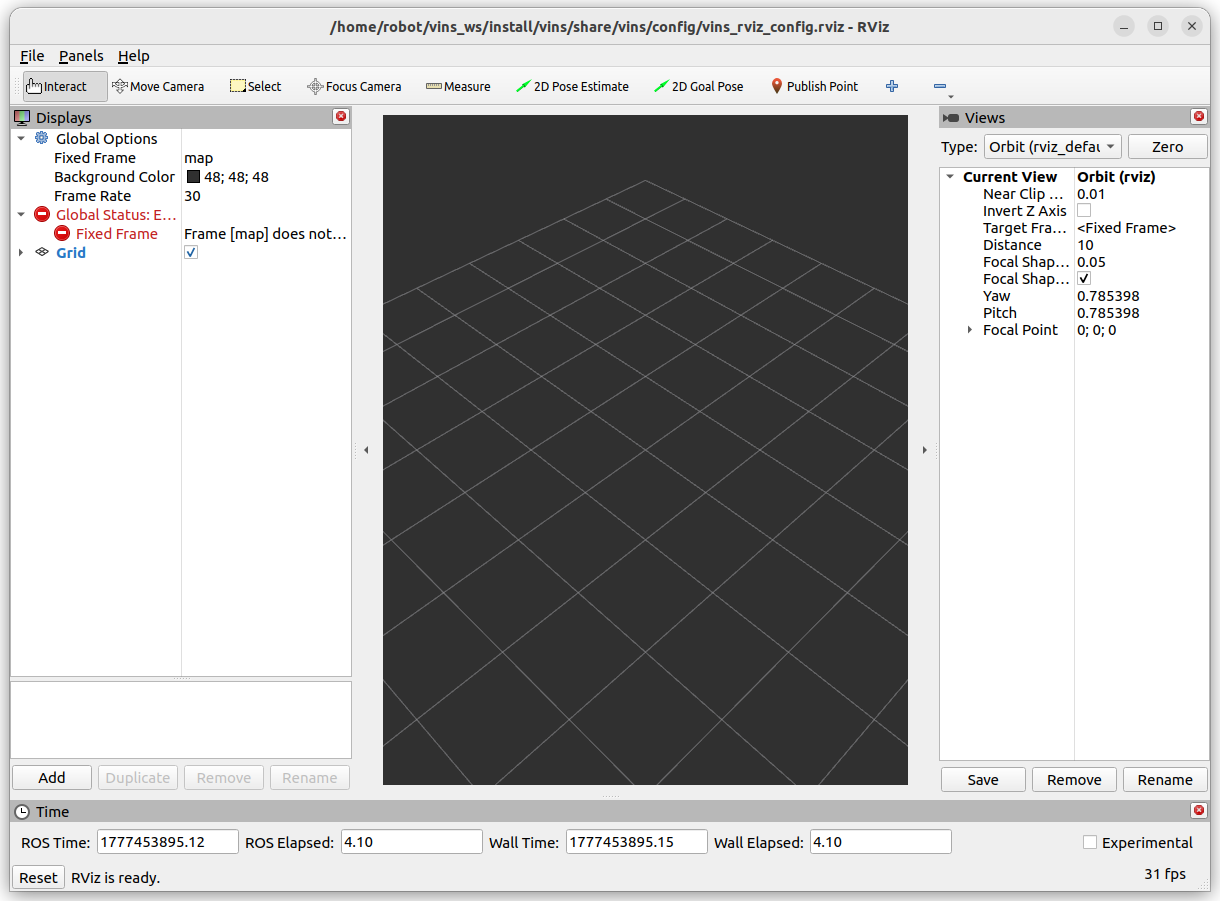
(2)添加显示插件
Fixed Frame 输入 world:
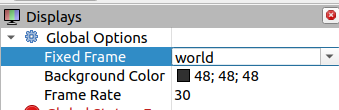
点击 RViz 左下角的 Add 按钮,在弹出的面板中选择对应话题: 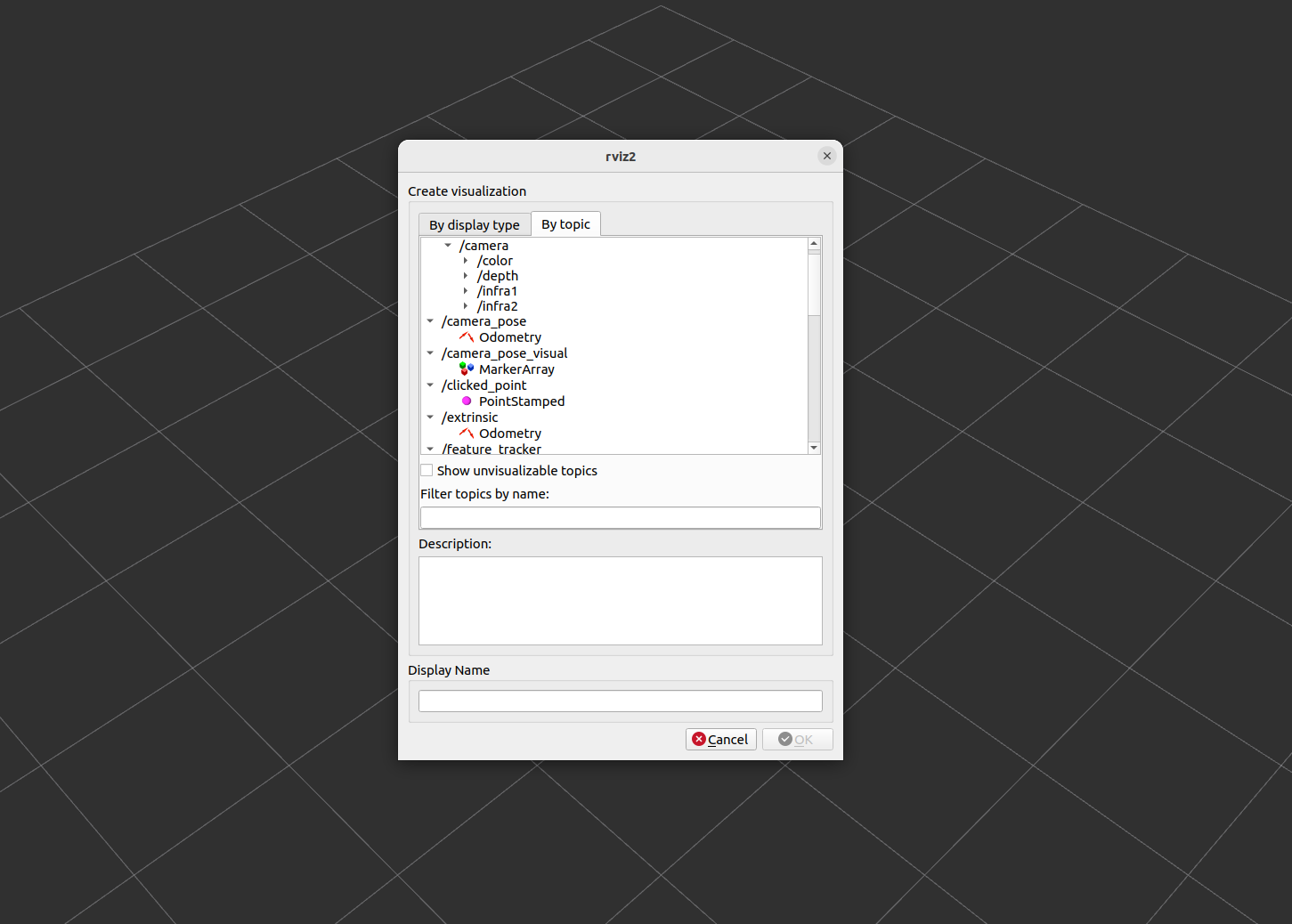
依次添加:
| 显示类型 | 话题 (Topic) | 说明 |
|---|---|---|
| Image | /camera/camera/color/image_raw | 实时彩色图像 |
| PointCloud2 | /point_cloud | VINS 生成的三维点云地图 |
| Path | /path | 相机运动轨迹 |
| MarkerArray | /feature_tracker/feature | 当前帧提取的特征点(需将 Marker 的 Namespace 或 Topic 设为该话题) |
具体操作为:
-
添加 Image :Add → 在
By topic选项卡中找到/camera/camera/color/image_raw→ 选择Image→ OK。然后图像就会显示在 RViz 中央。 -
添加 PointCloud2 :Add → 按 Topic 筛选 → 找到
/point_cloud→ 选择PointCloud2→ OK。然后将该点云显示的Style设为Points,并适当调整Size(例如 0.05)。
现在就可以看到点云和轨迹了:
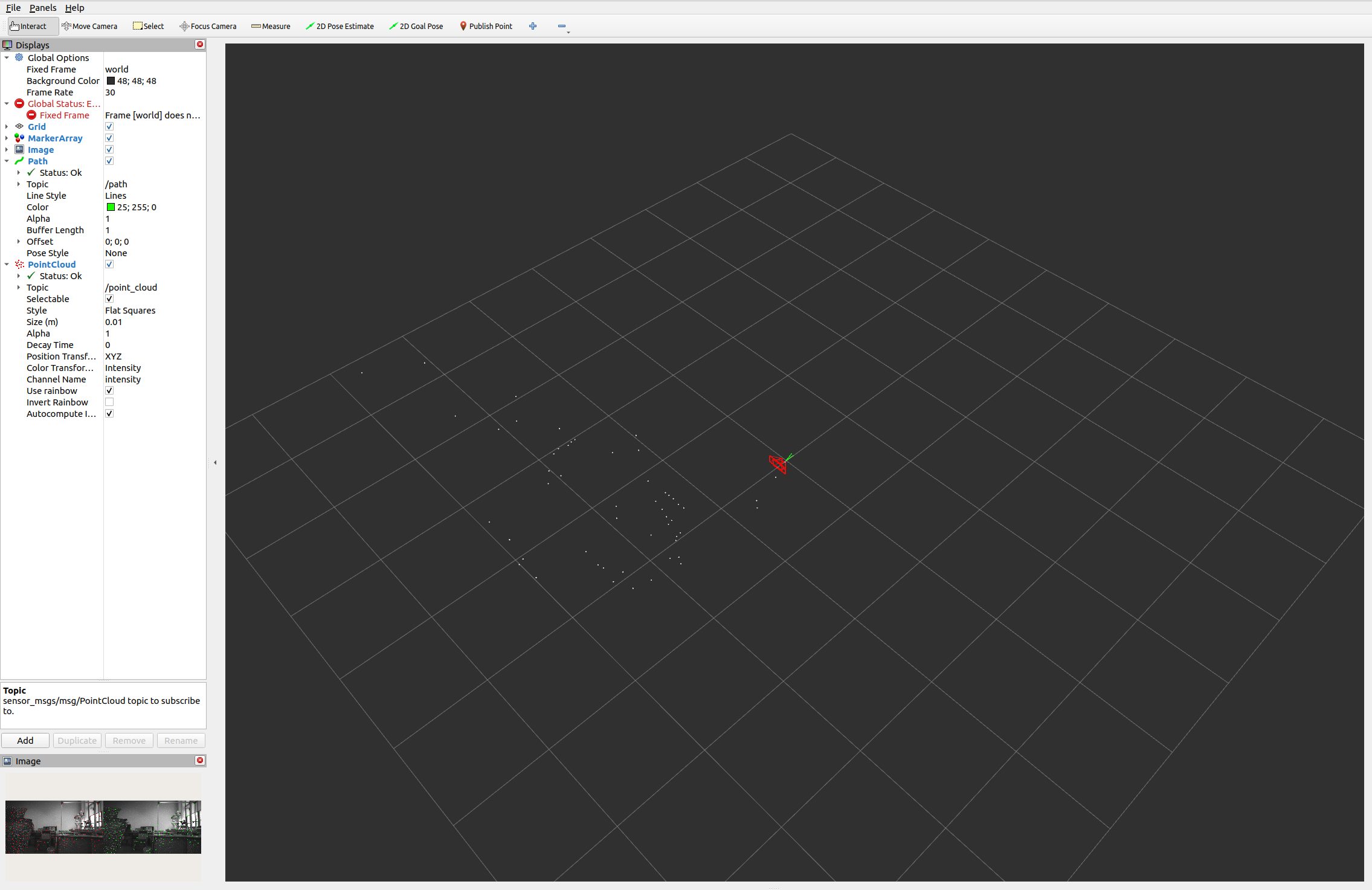
补充:保存配置以便下次使用
设置好所有显示插件后,可以保存当前配置:菜单栏 File → Save Config As → 选择路径(例如 ~/vins_ws/src/VINS-Fusion-ROS2-Humble/vins_rviz.rviz)。
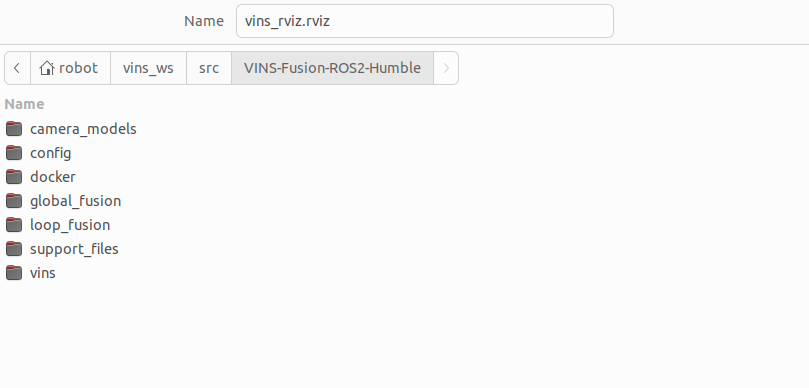
下次启动 RViz 时可以用:
bash
rviz2 -d ~/vins_ws/src/VINS-Fusion-ROS2-Humble/vins_rviz.rviz也可以修改 vins_rviz.launch.xml 文件,让它默认加载这个配置。