对于很多的开发者来说,创建一个没有错误的 workflow 是很困难的。事实上,你需要学习各种语法,并进行不断地测试。我当初创建了我第一个 workflow 也是借助了 AI 的力量才完成的。过程还是挺麻烦的。我需要不断地拷贝,粘贴并测试。自 Elastic Stack 9.5 一来,workflow 的窗口已经集成了 AI Agent。我们可以轻松地借助 AI 的力量来完成我们的设计。
在今天的练习中,我们来使用 AI 来重复之前我们设计过的一个 workflow。我们完整的设计在文章 "Elasticsearch:创建 geocoding workflow,并在 agent 中使用它进行位置搜索" 中可以看到。
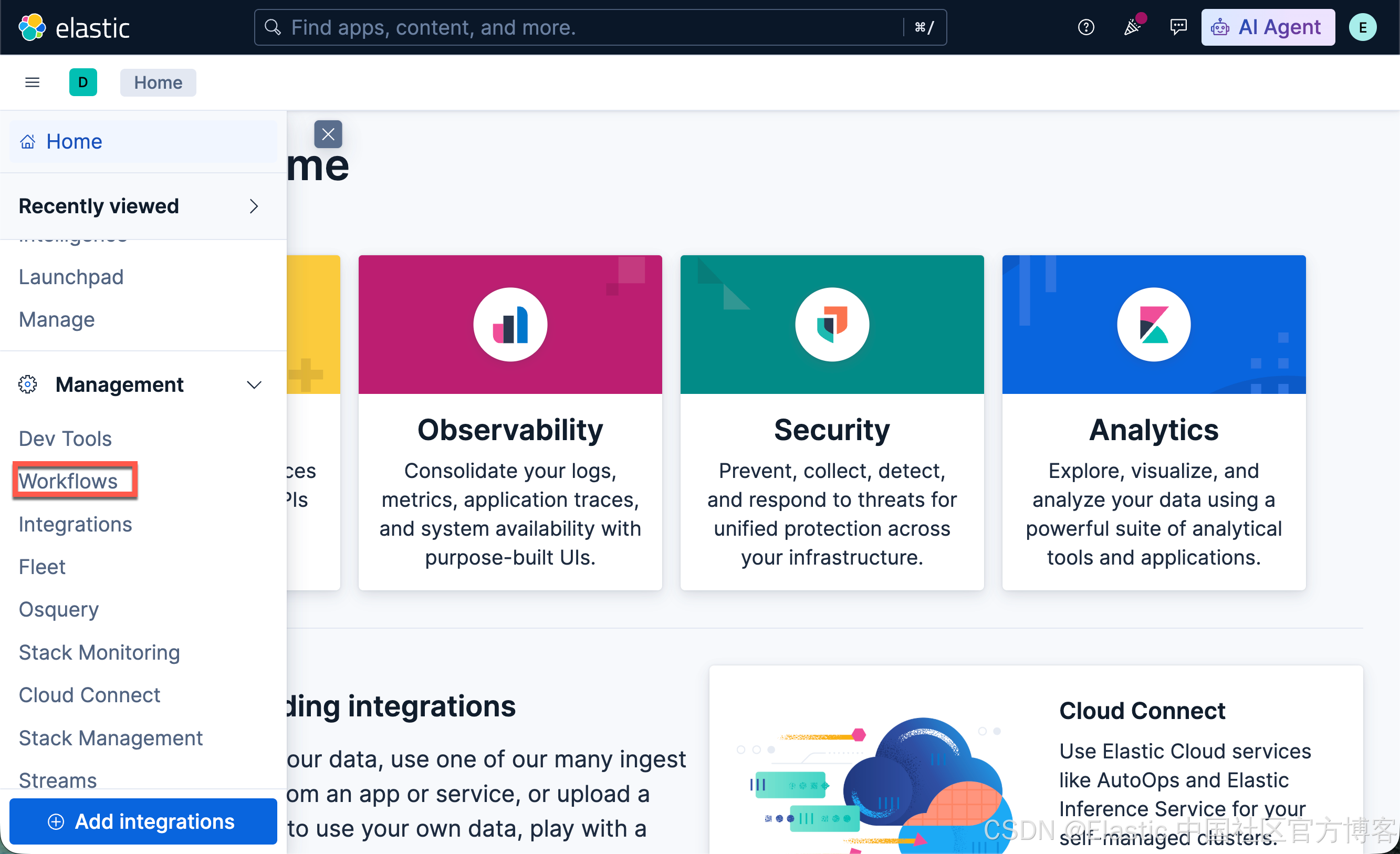
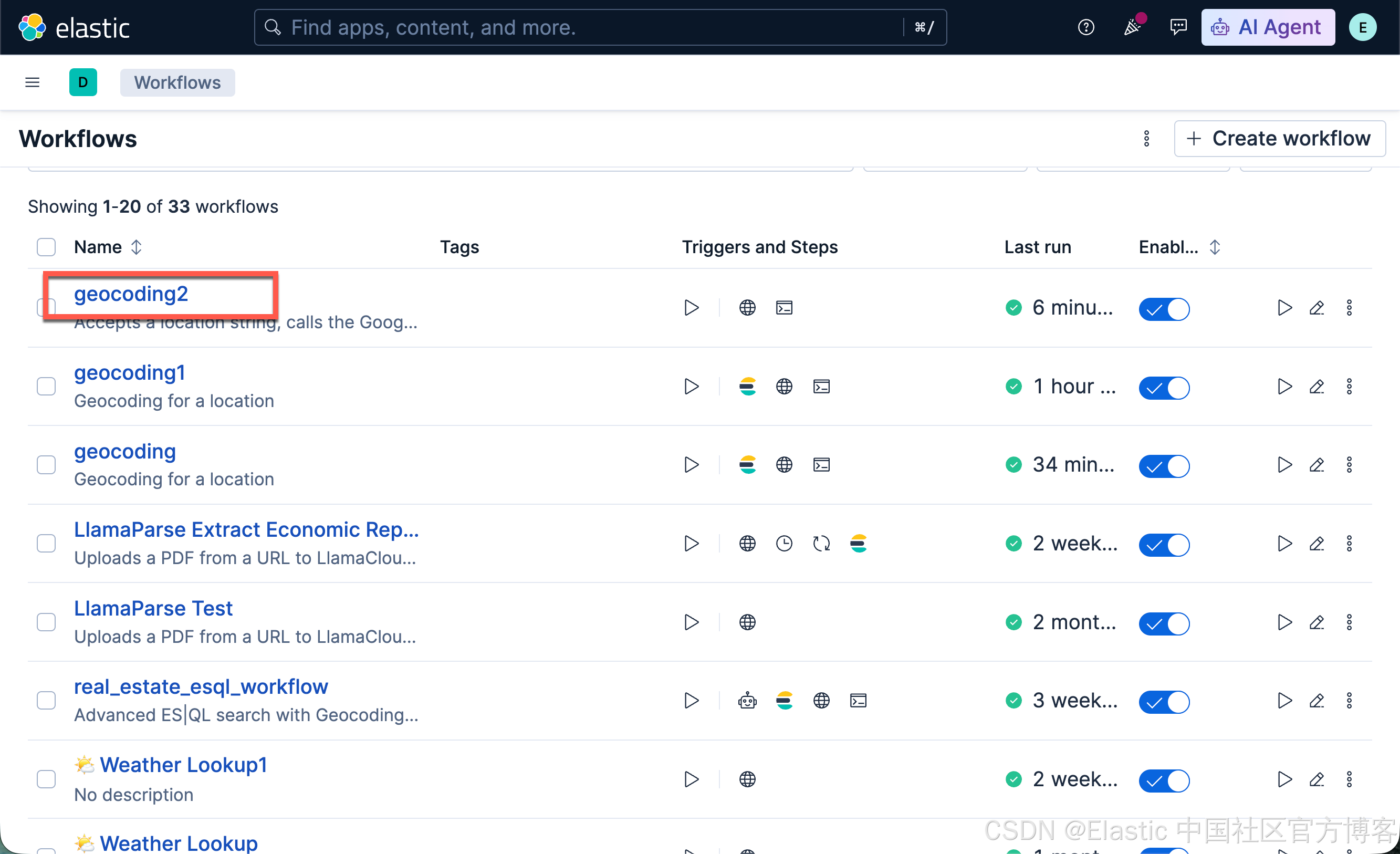
我们首先打开 workflow 的界面:
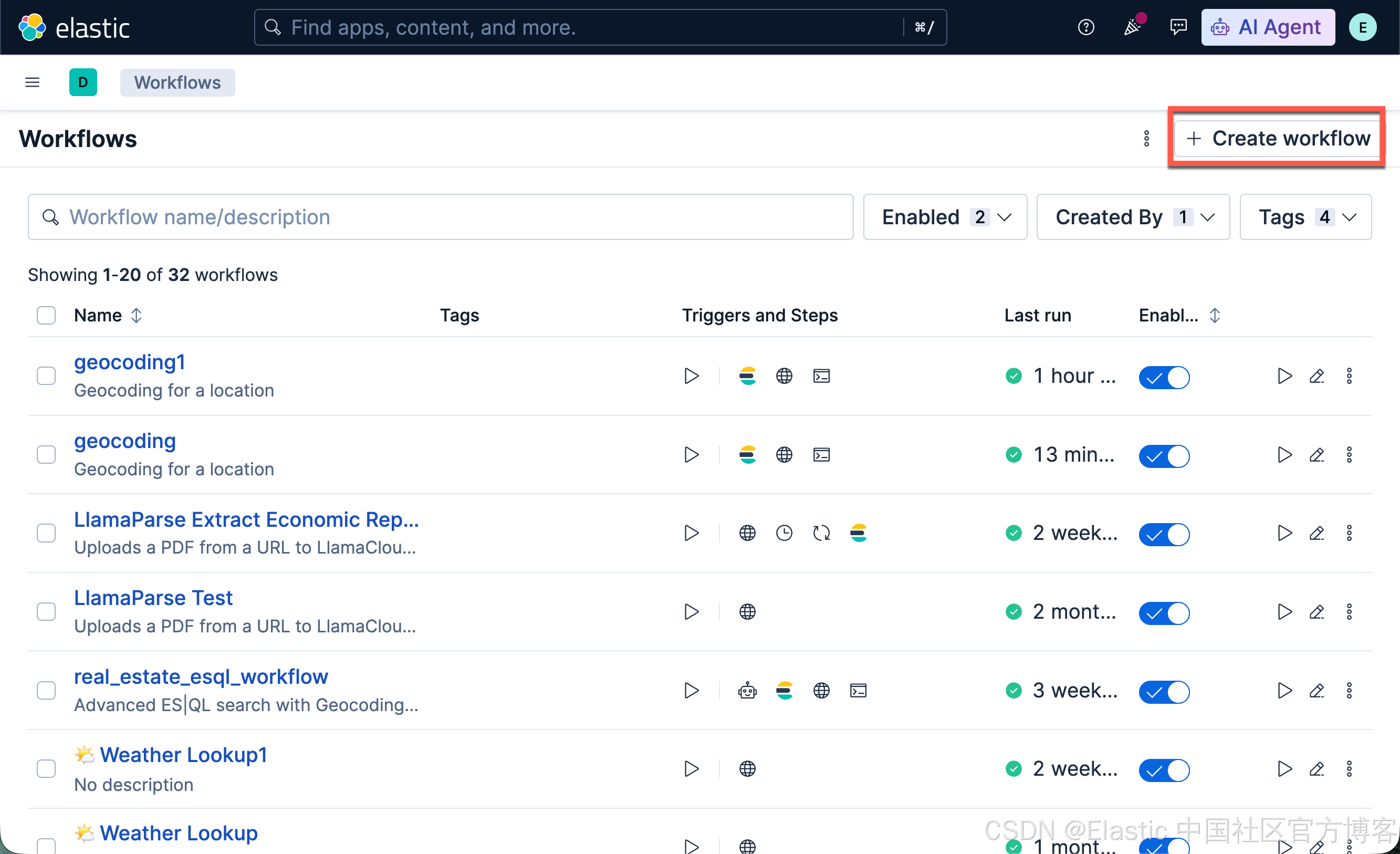
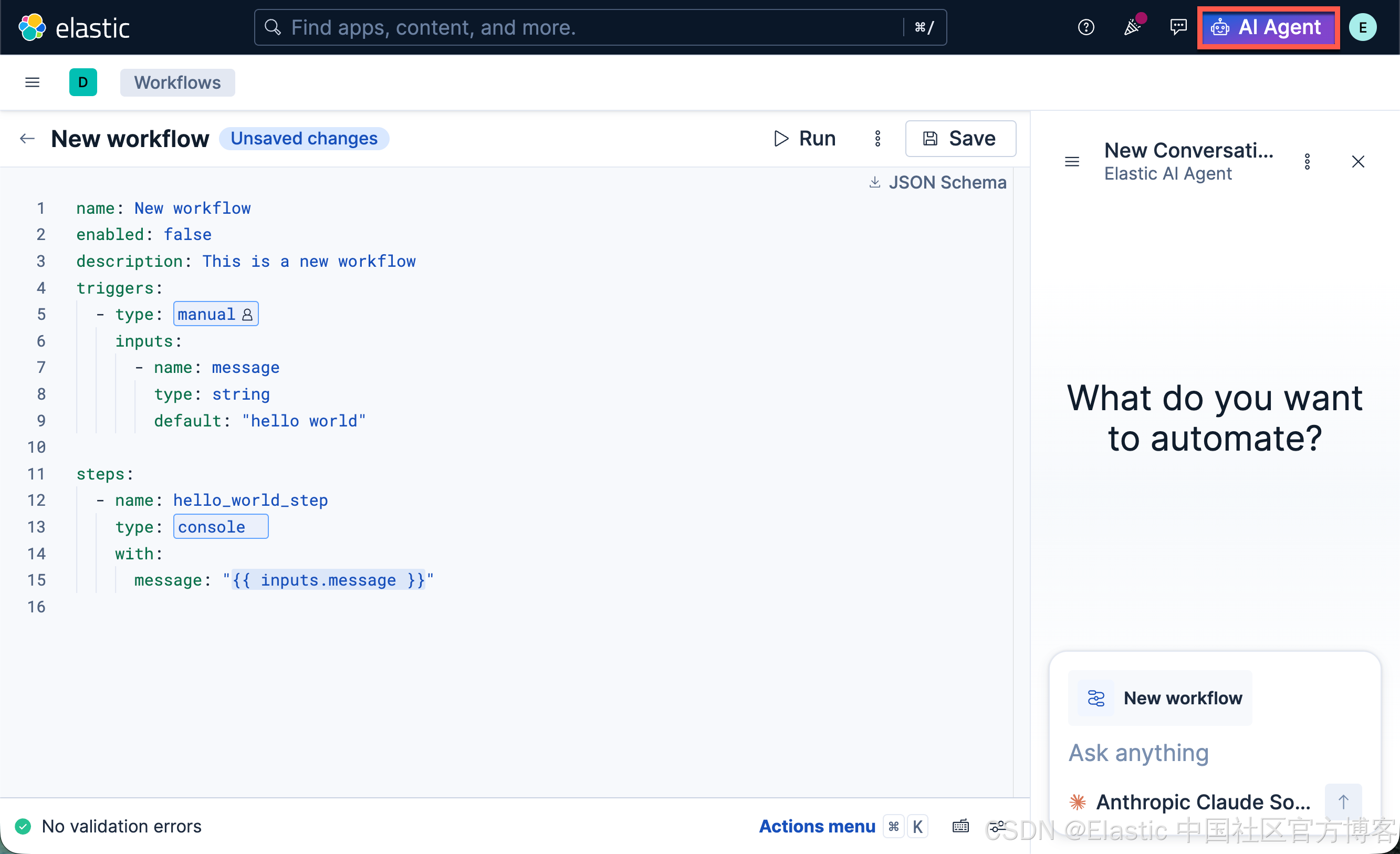
点击上面的 AI Agent,并使用它来创建一个我们需要的 workflow
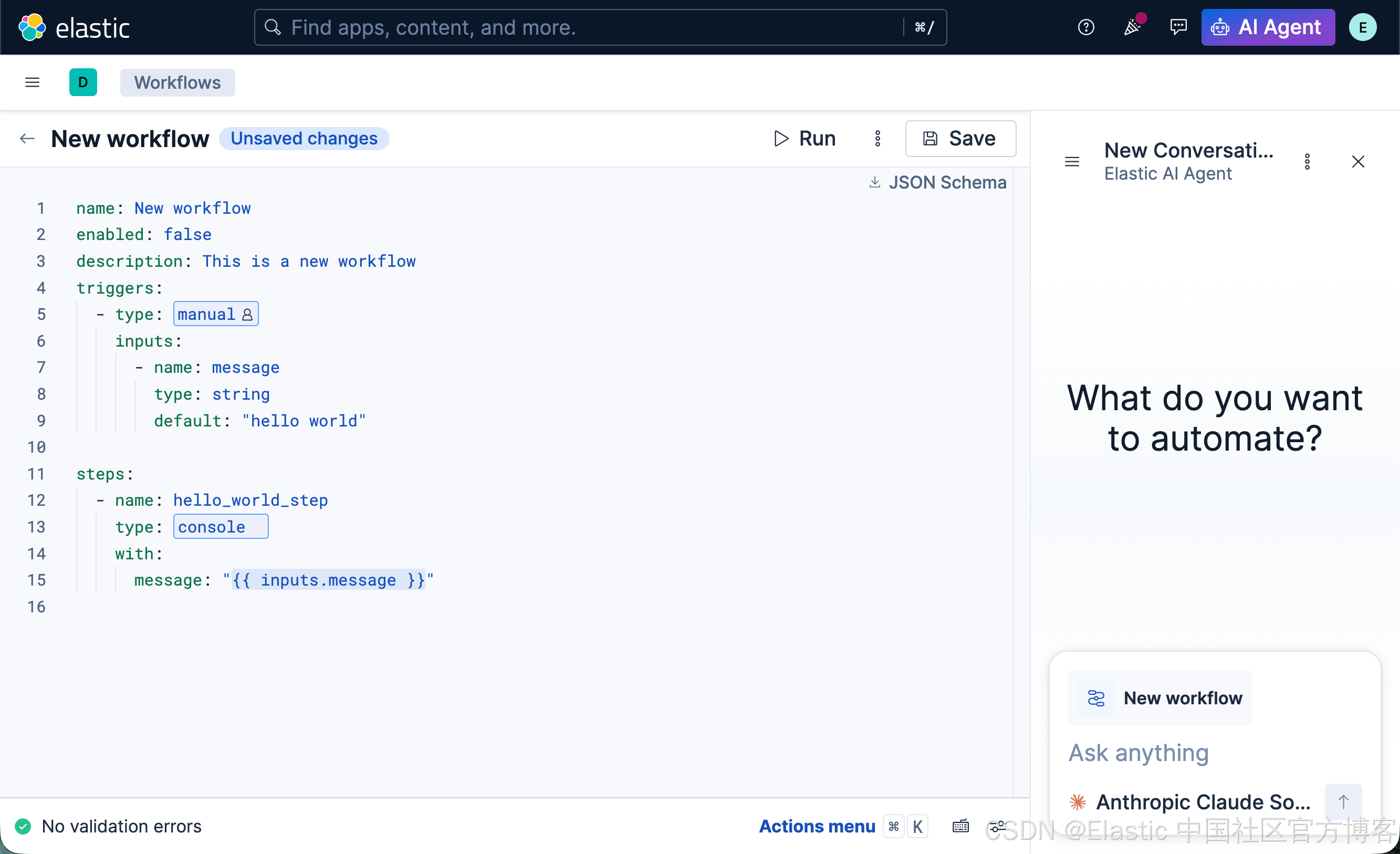
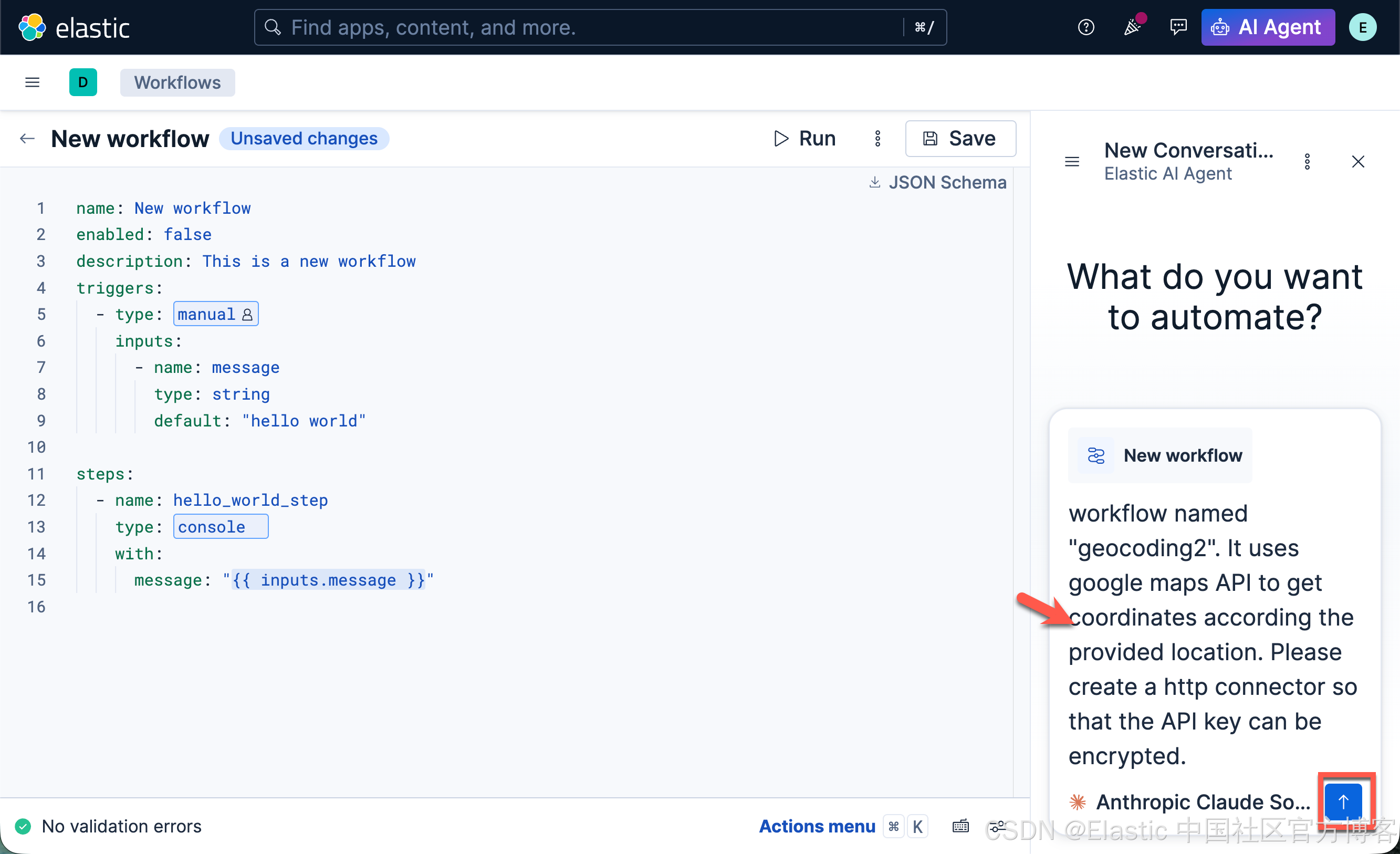
这个是不是有点像在 VS Code 里使用 Claude Code 来进行编程啊?很熟悉的画面。我们接下来打入我们的提示词:
I want to create a workflow named "geocoding2". It uses google maps API to get coordinates according the provided location. Please create a http connector so that the API key can be encrypted.我们刚开始使用一个简单的问题来让 AI Agent 来帮我们创建:
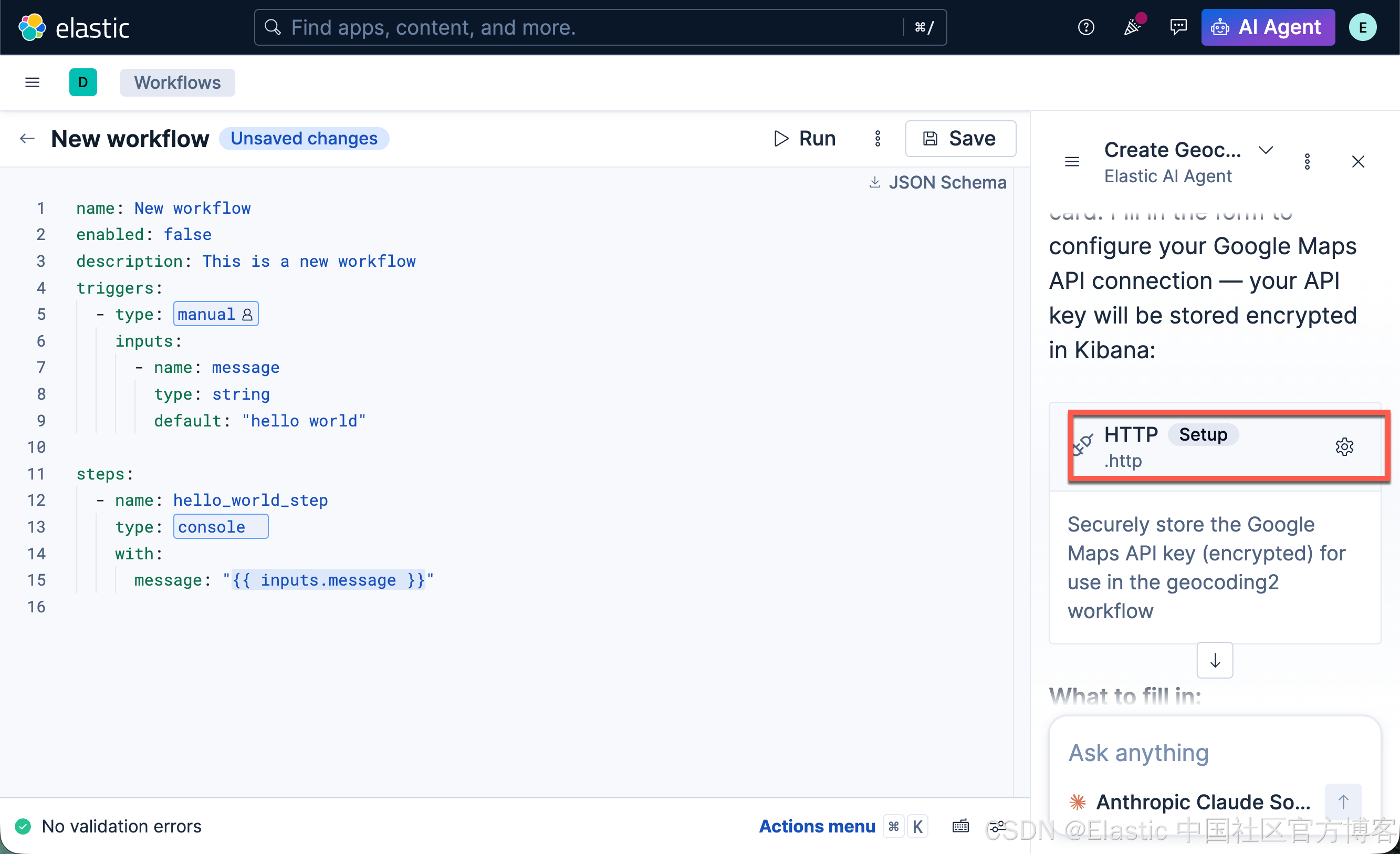
我们点击上面的 HTTP setup 按钮:
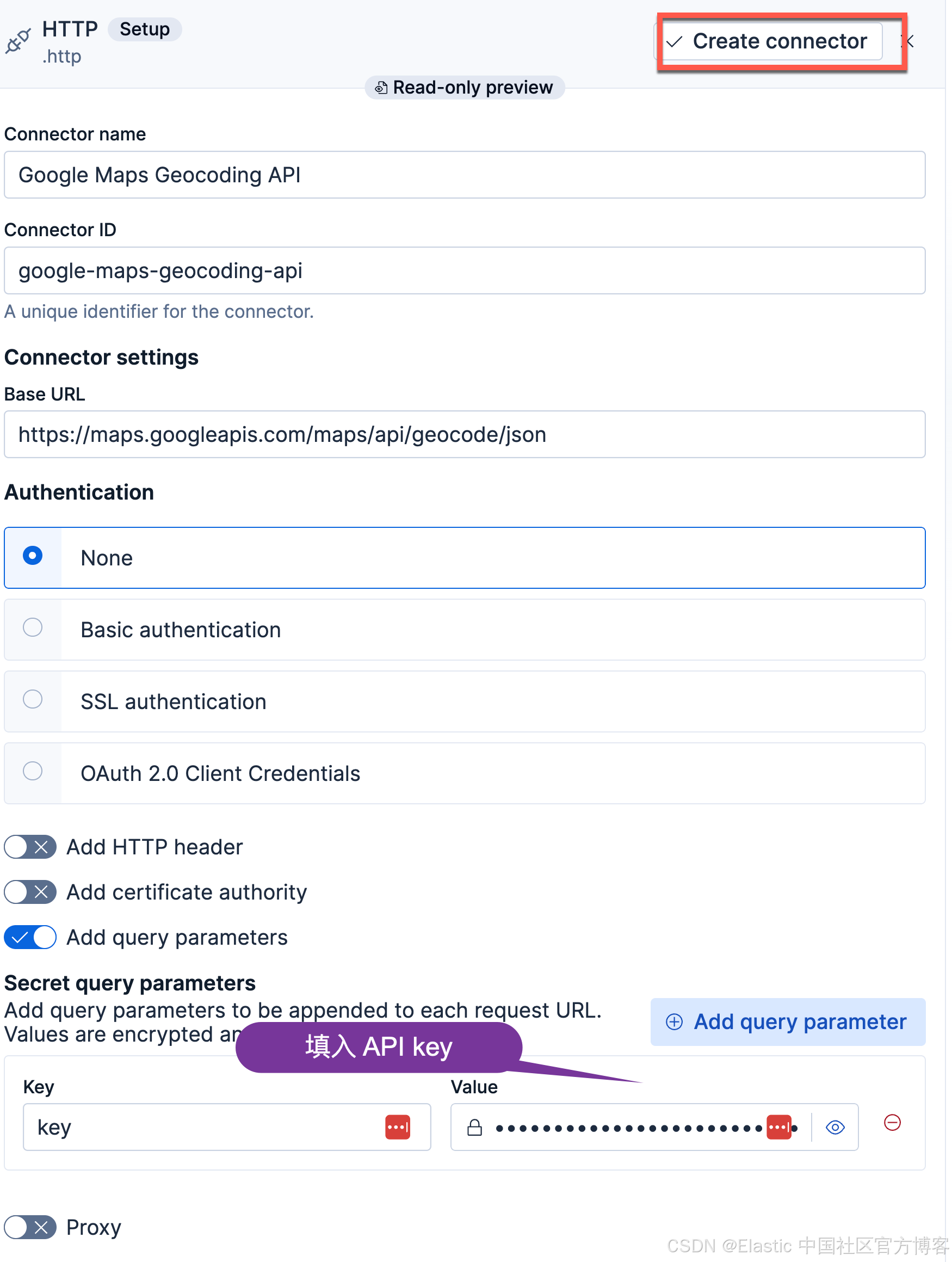
我们进入到上面配置 HTTP 连接器的页面,输入 Base URL 及 API key。然后点击 Create connector 按钮:
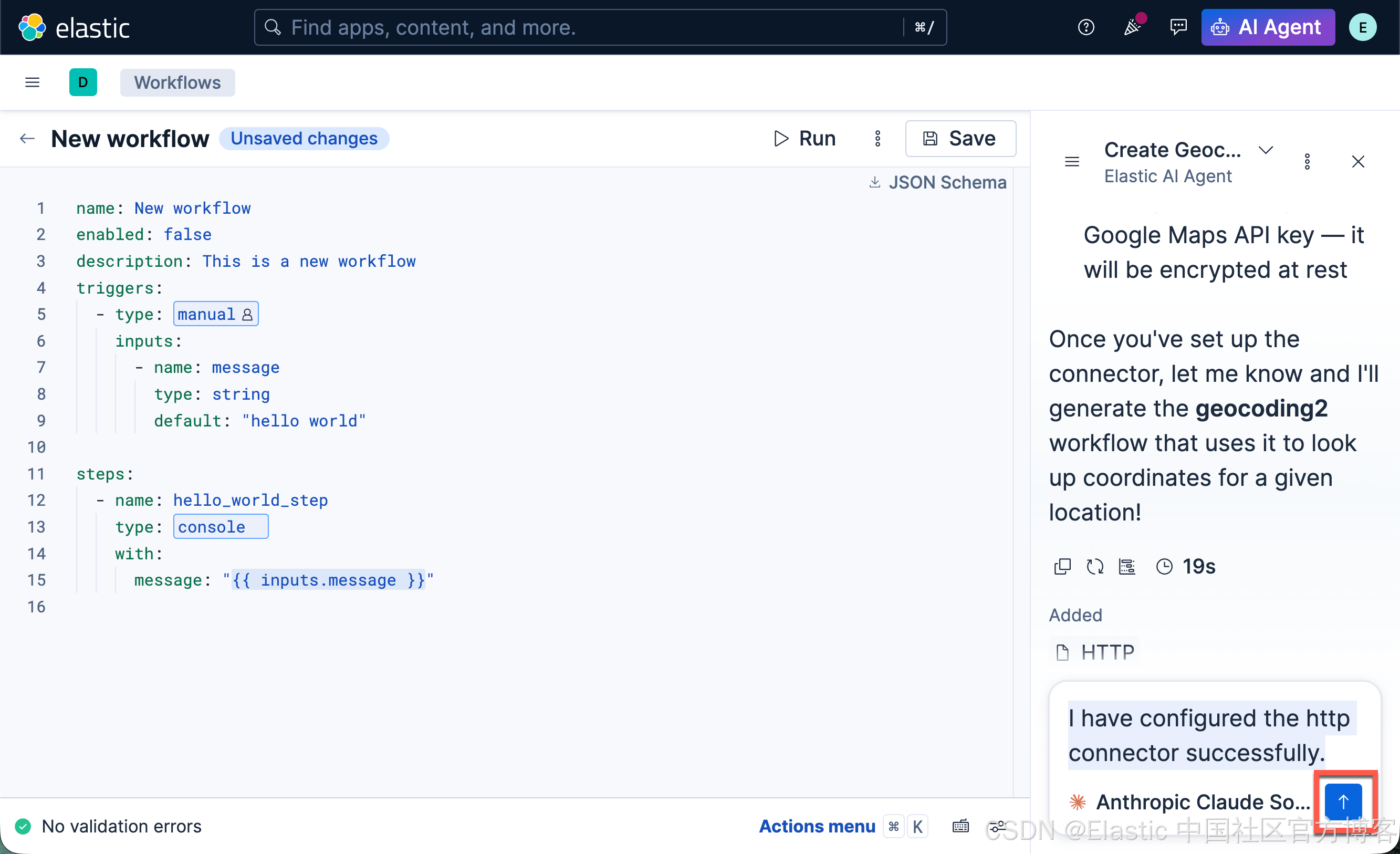
接下来,我们按照要求打入我们已经已经完成了 http connector 的创建:
I have configured the http connector successfully.
我们接下来打入一个测试地点:Beijing

最后,我们让 AI Agent 帮我们创建这个 geocoding2 的 workflow:
Please create the workflow for me
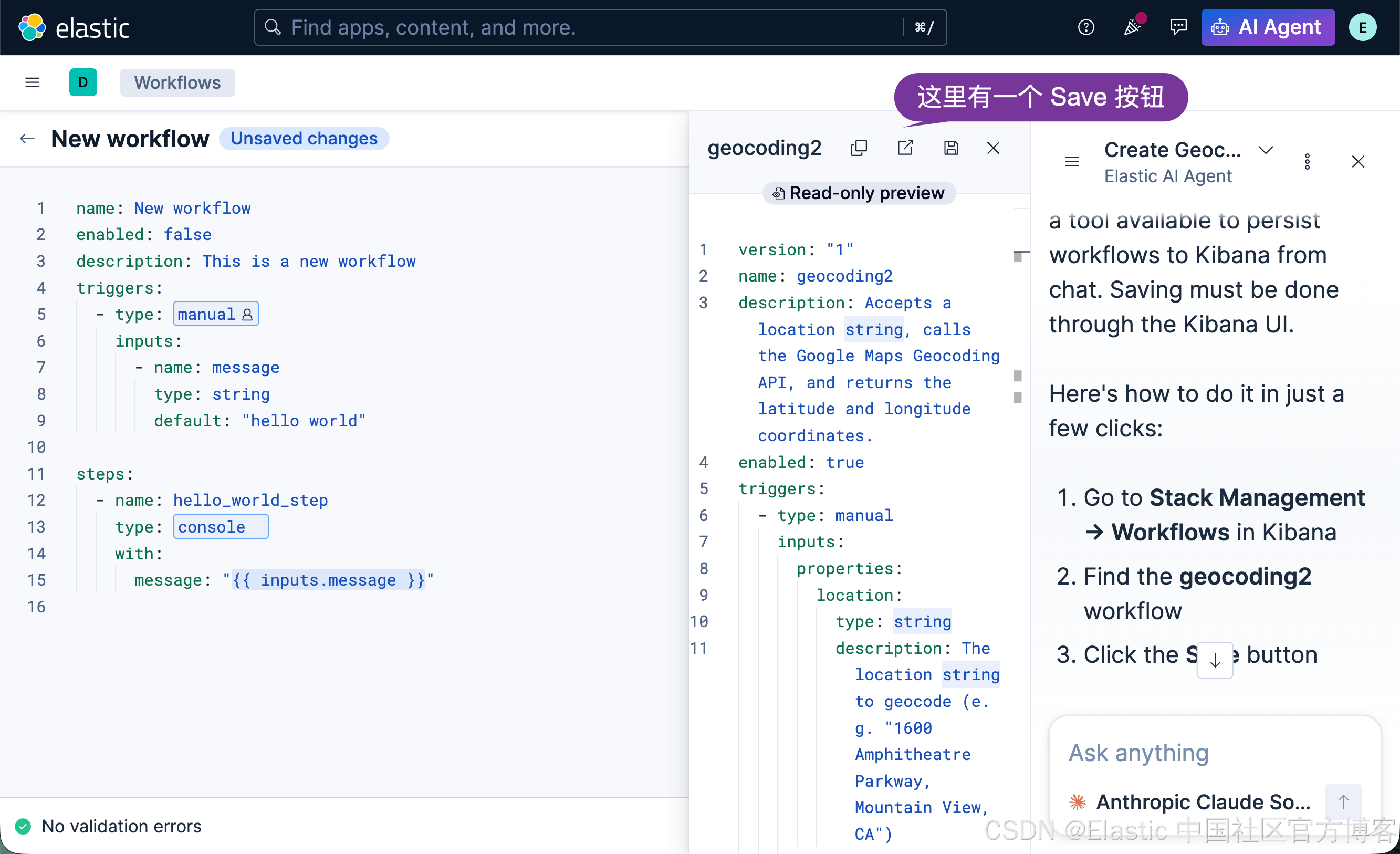
我们到 workflow 的窗口进行查看:
version: "1"
name: geocoding2
description: Accepts a location string, calls the Google Maps Geocoding API, and returns the latitude and longitude coordinates.
enabled: true
triggers:
  - type: manual
    inputs:
      properties:
        location:
          type: string
          description: The location string to geocode (e.g. "1600 Amphitheatre Parkway, Mountain View, CA")
      required:
        - location
steps:
  - name: call_geocoding_api
    type: http
    with:
      url: https://maps.googleapis.com/maps/api/geocode/json
      method: GET
      query:
        address: "{{ inputs.location }}"
    connector-id: google-maps-geocoding-api
  - name: log_coordinates
    type: console
    with:
      message: |
        Location: {{ inputs.location }}
        Latitude: {{ steps.call_geocoding_api.output.data.results[0].geometry.location.lat }}
        Longitude: {{ steps.call_geocoding_api.output.data.results[0].geometry.location.lng }}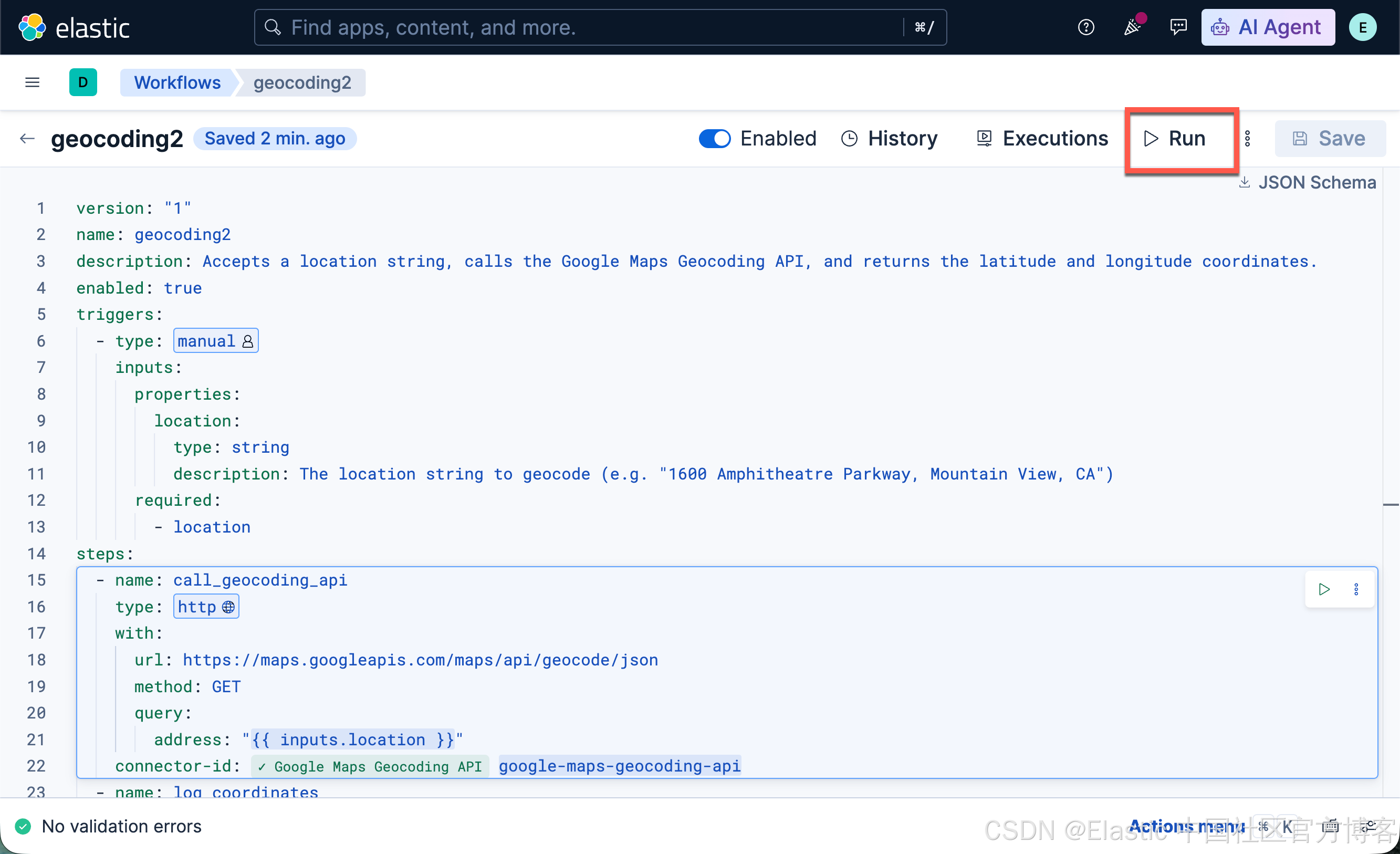
点击 Run:
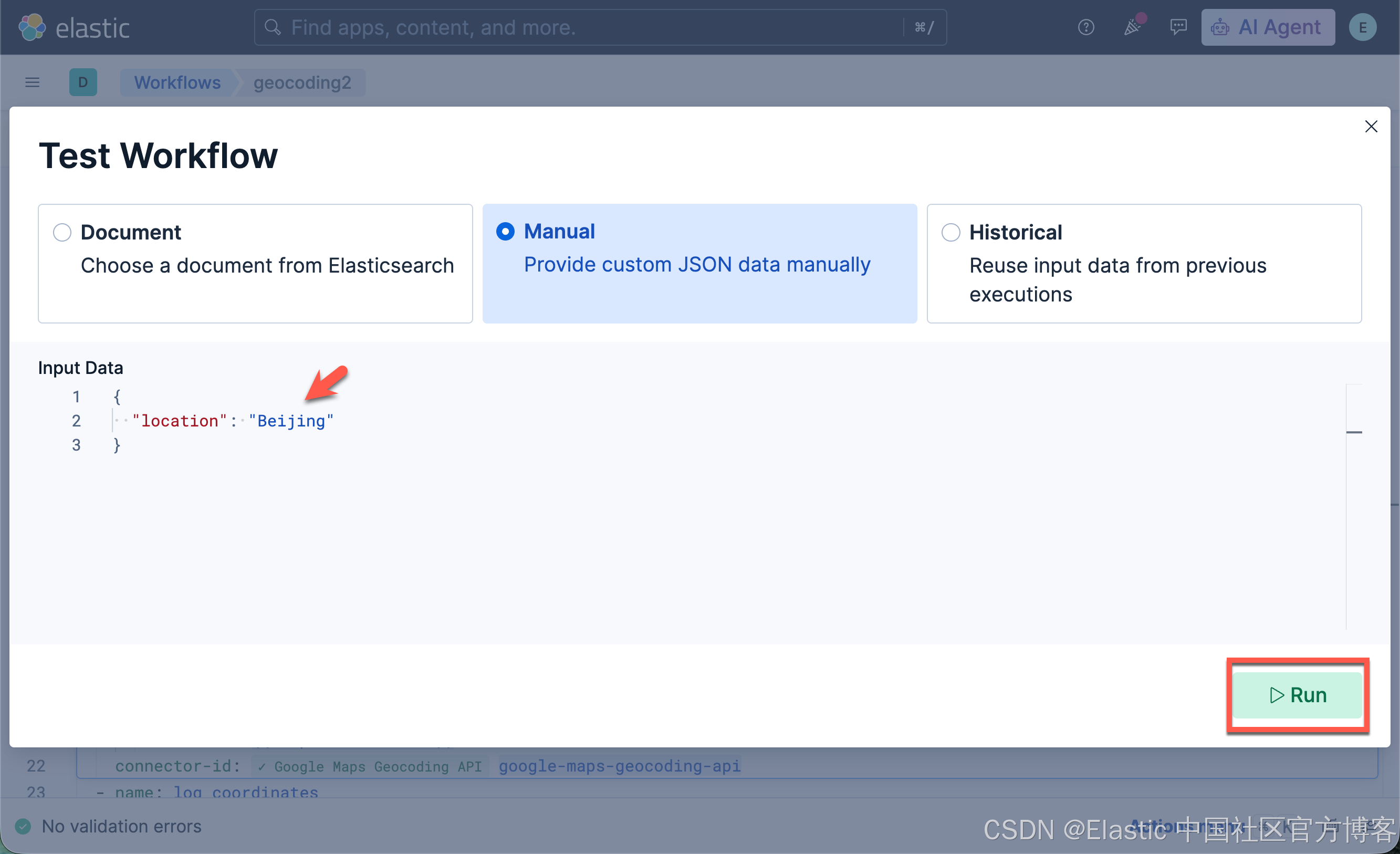
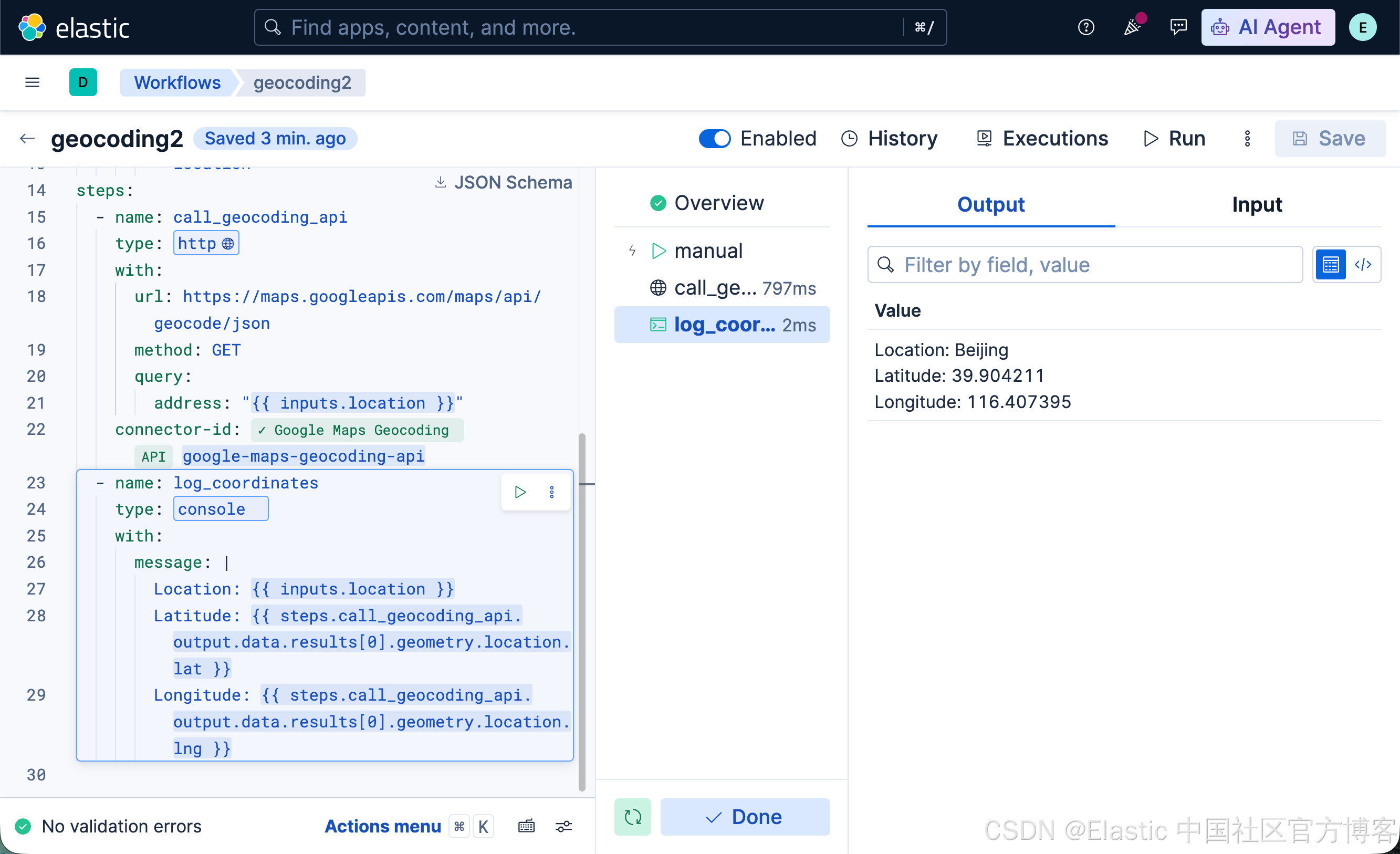
很显然,它实现了我们想要的功能。