前面的课程里,我们先后讲了 Entity(实体)和 Primitive(图元)这两种"物体"。
它们都能贴材质,只不过用法有简有繁。
今天先集中火力把 Entity 的材质系统 撸一遍,看看 Cesium 到底给我们备好了哪些"现成布料",以及怎么换布料。
一、Entity 材质入口:material 属性
以矩形为例,只要在配置项里写一行 material: ... 就能换皮肤。
既可以直给颜色,也能塞一个正式的 MaterialProperty 对象。
rectangle: {
  coordinates: Cesium.Rectangle.fromDegrees(...),
  material: Cesium.Color.RED.withAlpha(0.5)   // 直接写颜色,底层会自动包成 ColorMaterialProperty
}
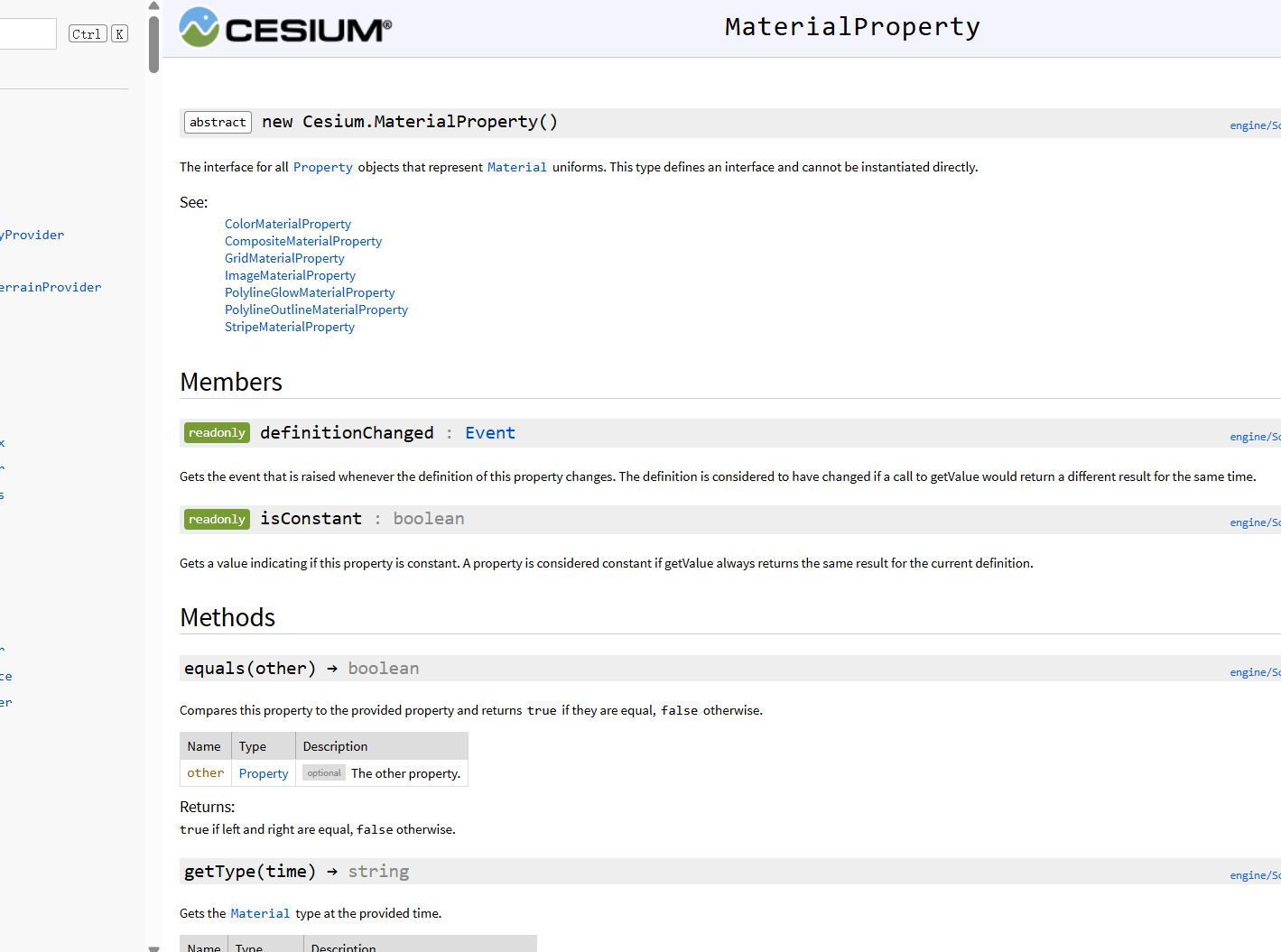
二、MaterialProperty 是什么?
MaterialProperty 是所有材质属性的"老祖宗",一个抽象基类,不能直接 new 。
它只规定派生类必须实现哪些方法和属性。
我们真正用的是它的那群"子子孙孙"------
名字统一以 ***MaterialProperty 结尾,随手一搜就能找到。
三、官方常备"布料"清单
下面 4 种最常用,无需自己写着色器,直接配参数即可。
-
纯色布料(ColorMaterialProperty)
和直接写颜色等效,写不写都行。
const material = new Cesium.ColorMaterialProperty(
Cesium.Color.RED.withAlpha(0.5)
); -
棋盘格(CheckerboardMaterialProperty)
黑白格子,可改颜色、可改密度。
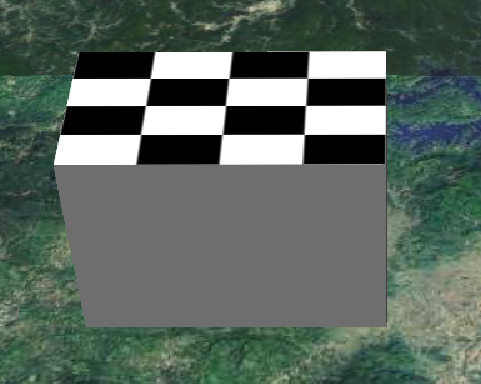
const material = new Cesium.CheckerboardMaterialProperty({
  evenColor: Cesium.Color.WHITE,  // 偶数格
  oddColor: Cesium.Color.BLACK,   // 奇数格
  repeat: new Cesium.Cartesian2(4, 4) // 横向、纵向各重复 4 次
});-
条纹布(StripeMaterialProperty)
横条 or 竖条,随你挑。
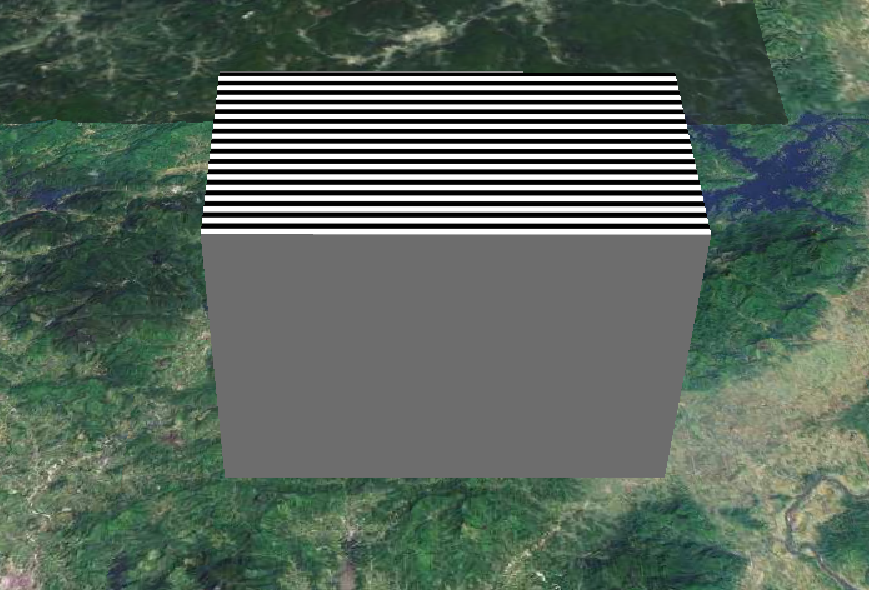
const stripMaterial = new Cesium.StripeMaterialProperty({
  evenColor: Cesium.Color.WHITE,
  oddColor: Cesium.Color.BLACK,
  repeat: 32,                     // 条纹数量
  offset: 0.0,                    // 起始偏移
  orientation: Cesium.StripeOrientation.HORIZONTAL // 或 VERTICAL
});-
网格布(GridMaterialProperty)
把面切成"豆腐块",适合画地块、棋盘。
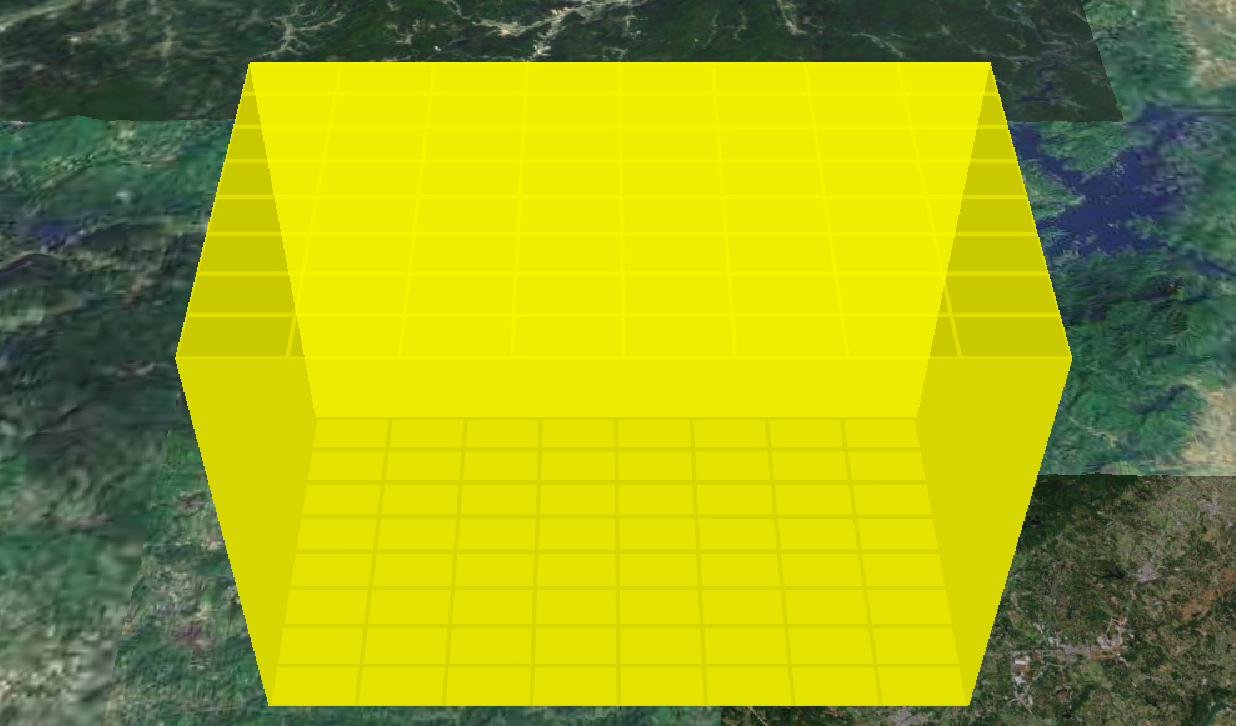
const gridMaterial = new Cesium.GridMaterialProperty({
  color: Cesium.Color.YELLOW,     // 网格线颜色
  cellAlpha: 0.2,                 // 格子填充透明度
  lineCount: new Cesium.Cartesian2(8, 8),   // 横、竖各 8 条线
  lineThickness: new Cesium.Cartesian2(2.0, 2.0) // 线宽(像素)
});
四、把布料穿到矩形上
无论哪种材质,最后都交给 material 字段即可。
const redRectangle = viewer.entities.add({
  name: "Red translucent rectangle",
  rectangle: {
    coordinates: Cesium.Rectangle.fromDegrees(114.0, 23.4, 114.4, 23.6),
    extrudedHeight: 30000.0,      // 挤出高度,单位米
    material: material,           // 上面任意一种材质
  },
});
小结一句话
Entity 换皮肤 = 找 ***MaterialProperty → 配参数 → 扔给 material。
官方给的"布料"不够炫?后面我们教你亲手写着色器,想怎么酷就怎么酷。