🔥个人主页: Milestone-里程碑
❄️个人专栏: <<力扣hot100>> <<C++>><<Linux>>
🌟心向往之行必能至
目录
[ls ls-l ll](#ls ls-l ll)
[alias 指令 :自定义命令别名](#alias 指令 :自定义命令别名)
前言:Linux指令的底层逻辑
Linux指令本质
我们输入的Linux指令(eg: pwd ls等等),其实都是系统提前编译好的可执行程序(可执行文件)
指令分为两种:
内置指令: (eg:cd pwd )内置指令是 Shell 程序(如 Bash、Zsh)内部的函数,执行效率更高,且会直接影响当前 Shell 的环境
外置指令:(eg:ls cp等等)外置指令是独立于 Shell 的可执行文件,存放在文件系统的某个目录下(如
/bin、/usr/bin、/sbin等),运行时会启动一个新的进程。
ls ls-l ll
|-----------------|----------------------------|---------------------|---|
| 指令名称 | 本质 | 显示核心格式 | |
| ls(基础列表) | 系统原生外置指令(/bin/ls) | 仅列出文件 / 目录名称(紧凑排列) | |
| ls -l(长格式列表) | 系统原生外置指令 + 参数(ls 的长格式选项) | 长格式显示(一行一个文件,含完整属性) | |
| ll(别名,等价于ls -l) | Bash/Zsh 内置别名(非独立指令) | 与ls一样 | |
ll为何为ls -l的别名,下面会讲
一切皆文件:位于/dev目录下
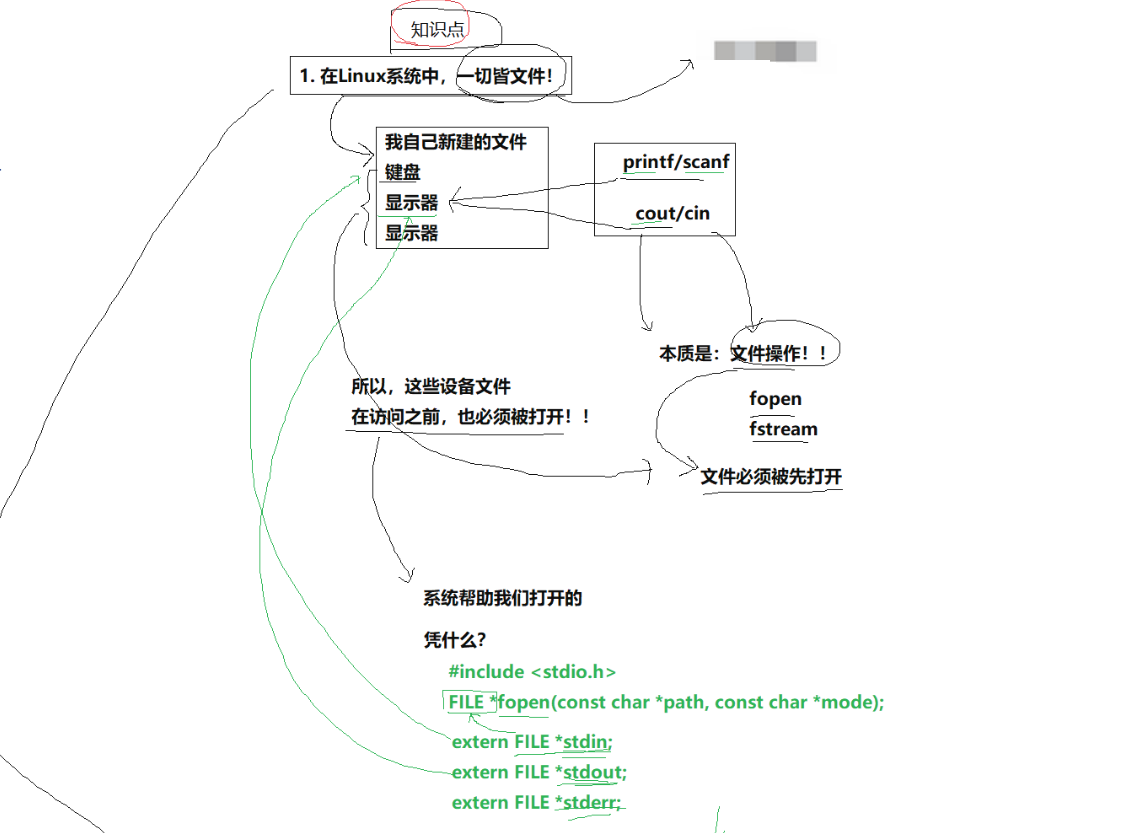
重定向:控制文件的数据流
上面已经有了一切皆文件,那么流入何处,就可以使用重定向
bash
root@hcss-ecs-1cde:~# cat hello.txt
ab
root@hcss-ecs-1cde:~#  cat 'cd' >> hello.txt
cat: cd: No such file or directory
root@hcss-ecs-1cde:~# cat hello.txt
ab
root@hcss-ecs-1cde:~# echo 'cd' >hello.txt
root@hcss-ecs-1cde:~# cat hello.txt
cd
root@hcss-ecs-1cde:~# echo 'ab' >> hello.txt
root@hcss-ecs-1cde:~# cat hello.txt
cd
ab
root@hcss-ecs-1cde:~#  cat < hello.txt
cd
ab>:覆盖写入文件(但如果写入文件不为空,那么就会覆盖)>>:追加写入文件(解决上面>输入会覆盖文件)<:从文件读取输入(图示改变了cat的默认输入源(键盘)变为 hello.txt文件)
7个高频指令详解
which:定位命令的绝对路径(基于一切皆文件)
功能:搜索系统指定的命令
cpp
[whb@bite-alicloud test]$ which ls
alias ls='ls --color=auto'
/usr/bin/ls
[whb@bite-alicloud test]$ which pwd
/usr/bin/pwd
alias 指令 :自定义命令别名
功能:设置命令的别名,为长命名重命名为短别名,提升效率
bash
[whb@bite-alicloud test]$ alias hello='ls -a -l -n'
[whb@bite-alicloud test]$ which hello
alias hello='ls -a -l -n'
/usr/bin/ls
[whb@bite-alicloud test]$ hello
total 36
drwxrwxr-x 2 1003 1003 4096 Jan 11 17:59 .
drwx------ 22 1003 1003 4096 Jan 11 17:57 ..
-rw-rw-r-- 1 1003 1003 28667 Jan 11 18:29 temp.txt
注意:我们当前的操作的重命名都是暂时的,当关闭云服务器后,重命名会失效
回到前面ll是ls -l的重命名
bash
root@hcss-ecs-1cde:~# alias ll
alias ll='ls -alF'
man:查找指令使用的"利器"
Linux的指令太多,我们不可能全部记下,可以通过查看联机⼿册获取帮助
语法: man 选项 命令
man⼿册分为9章(不同系统可能会有差别),常用的为前三章
1 是普通的命令
2 是系统调⽤,如open,write之类的(通过这个,⾄少可以很⽅便的查到调⽤这个函数,需要加什么
头⽂件)
3 是库函数,如printf,fread4是特殊⽂件,也就是/dev下的各种设备⽂件
eg:查找printf的使用 : man printf
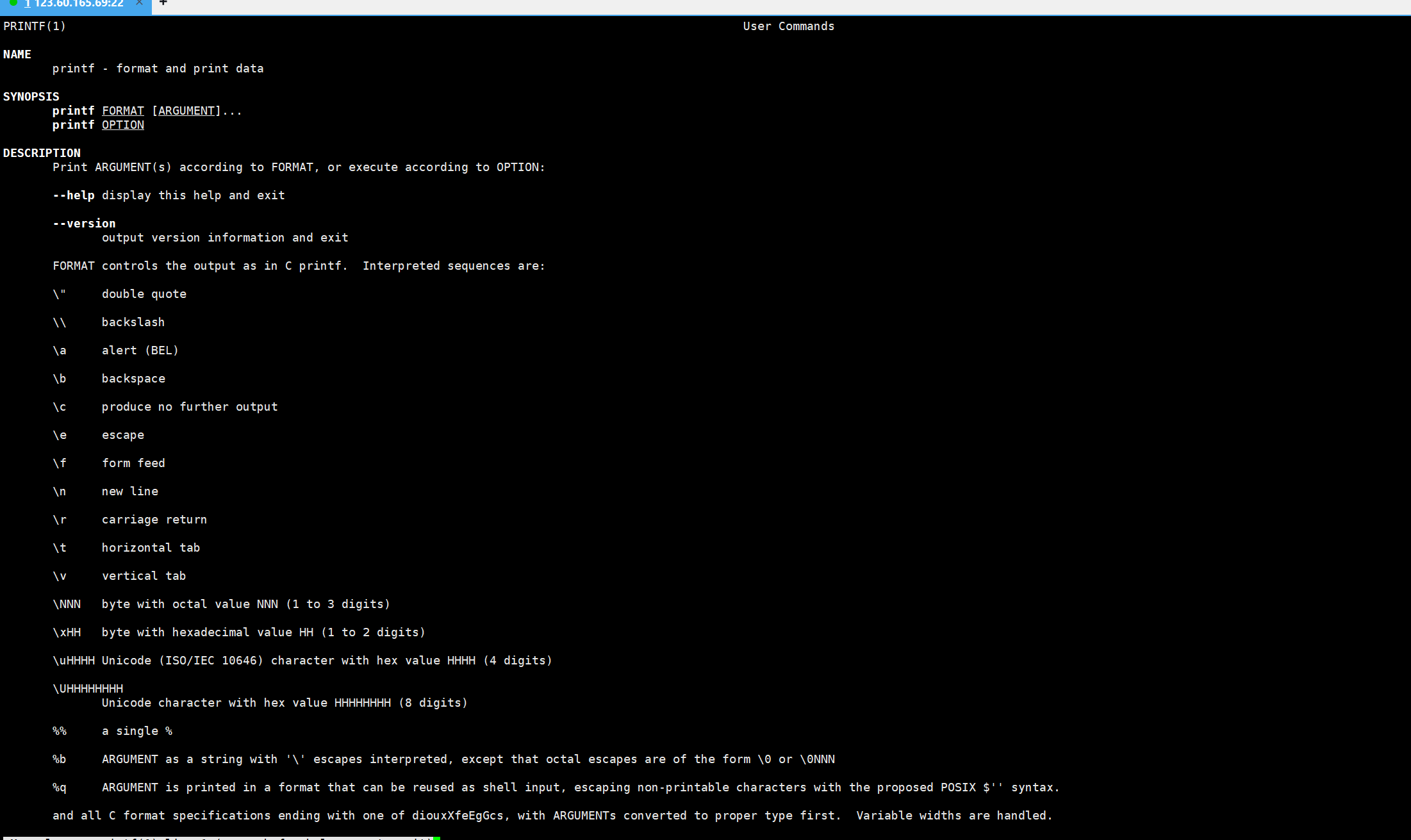
man 3 printf
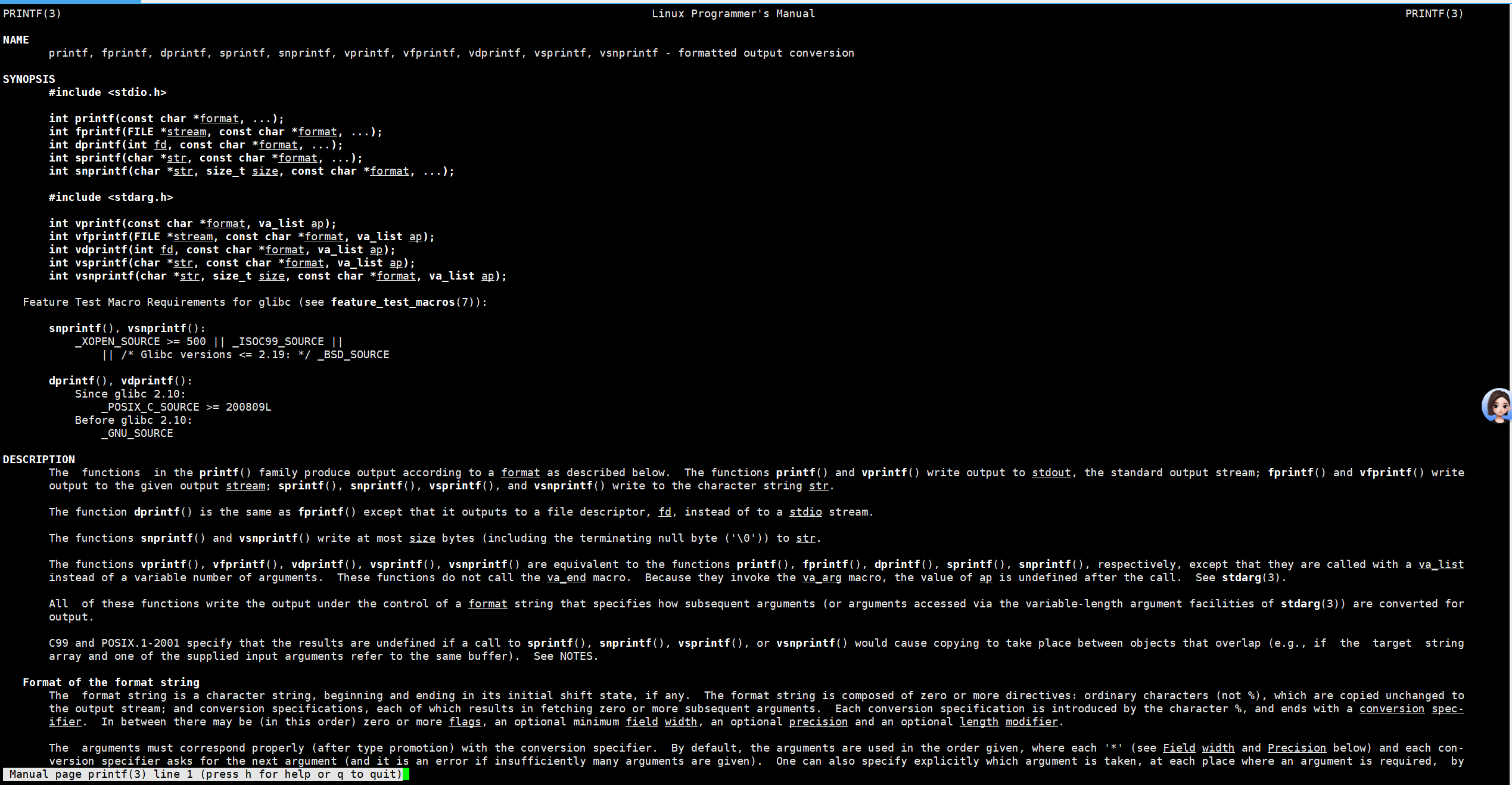
我们会发现同样是查找printf,两个结果却不一样,原因就在于man的查找机制
man查找会从自己的第一章逐章查找,当找到了,即使后面有该指令的解释,(如果我们不给详细要求)也不会继续,而是结束
注:man 可以查 man的用法 man man
echo:输出内容
用于将文本输出到终端或文件。通过 > 和 >> 符号,可以将输出重定向到文件中。
-
>:覆盖目标文件的内容。如果文件不存在,会自动创建。
-
>>:追加内容到目标文件末尾,不会覆盖已有内容。
bash
root@hcss-ecs-1cde:~# echo 'hello'(默认会换行)
hello
root@hcss-ecs-1cde:~# echo '444' > 1.txt(没有,创建)
root@hcss-ecs-1cde:~# echo '555' > 1.txt(有,继续输入)
cp:复制文件/目录
语法: cp 选项 源⽂件或⽬录 ⽬标⽂件或⽬录
功能: 复制⽂件或⽬录
cp指令⽤于复制⽂件或⽬录
如同时指定两个以上的⽂件或⽬录,且最后的⽬的地是⼀个已经存在的⽬录,则它会把前⾯指定的所有⽂件或⽬录复制到此⽬录中
常⽤选项
-f 或 --force 强⾏复制⽂件或⽬录, 不论⽬的⽂件或⽬录是否已经存在
-i 或 --interactive 覆盖⽂件之前先询问⽤⼾
-r 递归处理,将指定⽬录下的⽂件与⼦⽬录⼀并处理。若源⽂件或⽬录的形态,不属于⽬录或符
号链接,则⼀律视为普通⽂件处理
bash
#cp普通文件
root@hcss-ecs-1cde:~# echo '你好,Milestoe' > my.txt
root@hcss-ecs-1cde:~# ll
total 56
drwx------  4 root root  4096 Dec 10 16:49 ./
drwxr-xr-x 22 root root  4096 Dec  9 22:55 ../
-rw-r--r--  1 root root     0 Dec 10 07:53 a.txt
-rw-r--r--  1 root root 10388 Dec 10 15:12 .bash_history
-rw-r--r--  1 root root  3106 Oct 15  2021 .bashrc
drwx------  2 root root  4096 Apr 22  2025 .cache/
-rw-r--r--  1 root root     9 Dec  9 23:27 copy.cX
drwxr-xr-x  2 root root  4096 Dec 10 12:19 dir/
-rw-r--r--  1 root root     6 Dec 10 16:23 hello.txt
-rw-------  1 root root     0 Apr 22  2025 .history
-rw-------  1 root root    20 Dec 10 16:43 .lesshst
-rw-r--r--  1 root root    16 Dec 10 16:49 my.txt
-rw-r--r--  1 root root   161 Jul  9  2019 .profile
-rw-r--r--  1 root root     0 Dec 10 07:54 text.c
-rw-------  1 root root   177 Dec 10 16:03 .Xauthority
root@hcss-ecs-1cde:~# ls
a.txt  copy.cX  dir  hello.txt  my.txt  text.c
root@hcss-ecs-1cde:~# cat my.txt
你好,Milestoe
root@hcss-ecs-1cde:~# ll
total 56
drwx------  4 root root  4096 Dec 10 16:49 ./
drwxr-xr-x 22 root root  4096 Dec  9 22:55 ../
-rw-r--r--  1 root root     0 Dec 10 07:53 a.txt
-rw-r--r--  1 root root 10388 Dec 10 15:12 .bash_history
-rw-r--r--  1 root root  3106 Oct 15  2021 .bashrc
drwx------  2 root root  4096 Apr 22  2025 .cache/
-rw-r--r--  1 root root     9 Dec  9 23:27 copy.cX
drwxr-xr-x  2 root root  4096 Dec 10 12:19 dir/
-rw-r--r--  1 root root     6 Dec 10 16:23 hello.txt
-rw-------  1 root root     0 Apr 22  2025 .history
-rw-------  1 root root    20 Dec 10 16:43 .lesshst
-rw-r--r--  1 root root    16 Dec 10 16:49 my.txt
-rw-r--r--  1 root root   161 Jul  9  2019 .profile
-rw-r--r--  1 root root     0 Dec 10 07:54 text.c
-rw-------  1 root root   177 Dec 10 16:03 .Xauthority
root@hcss-ecs-1cde:~# cp my.txt my-backup.txt
root@hcss-ecs-1cde:~# ls
a.txt  copy.cX  dir  hello.txt  my-backup.txt  my.txt  text.c
root@hcss-ecs-1cde:~# cat my-backup.txt
你好,Milestoe
root@hcss-ecs-1cde:~# ll
total 60
drwx------  4 root root  4096 Dec 10 16:50 ./
drwxr-xr-x 22 root root  4096 Dec  9 22:55 ../
-rw-r--r--  1 root root     0 Dec 10 07:53 a.txt
-rw-r--r--  1 root root 10388 Dec 10 15:12 .bash_history
-rw-r--r--  1 root root  3106 Oct 15  2021 .bashrc
drwx------  2 root root  4096 Apr 22  2025 .cache/
-rw-r--r--  1 root root     9 Dec  9 23:27 copy.cX
drwxr-xr-x  2 root root  4096 Dec 10 12:19 dir/
-rw-r--r--  1 root root     6 Dec 10 16:23 hello.txt
-rw-------  1 root root     0 Apr 22  2025 .history
-rw-------  1 root root    20 Dec 10 16:43 .lesshst
-rw-r--r--  1 root root    16 Dec 10 16:50 my-backup.txt
-rw-r--r--  1 root root    16 Dec 10 16:49 my.txt
-rw-r--r--  1 root root   161 Jul  9  2019 .profile
-rw-r--r--  1 root root     0 Dec 10 07:54 text.c
-rw-------  1 root root   177 Dec 10 16:03 .Xauthority
root@hcss-ecs-1cde:~#

# 将多个文件拷贝到指定路径下
root@hcss-ecs-1cde:~# ll *txt
-rw-r--r-- 1 root root  0 Dec 10 07:53 a.txt
-rw-r--r-- 1 root root  6 Dec 10 16:23 hello.txt
-rw-r--r-- 1 root root 16 Dec 10 16:50 my-backup.txt
-rw-r--r-- 1 root root 16 Dec 10 16:49 my.txt
root@hcss-ecs-1cde:~# ll
total 60
drwx------  4 root root  4096 Dec 10 16:50 ./
drwxr-xr-x 22 root root  4096 Dec  9 22:55 ../
-rw-r--r--  1 root root     0 Dec 10 07:53 a.txt
-rw-r--r--  1 root root 10388 Dec 10 15:12 .bash_history
-rw-r--r--  1 root root  3106 Oct 15  2021 .bashrc
drwx------  2 root root  4096 Apr 22  2025 .cache/
-rw-r--r--  1 root root     9 Dec  9 23:27 copy.cX
drwxr-xr-x  2 root root  4096 Dec 10 12:19 dir/
-rw-r--r--  1 root root     6 Dec 10 16:23 hello.txt
-rw-------  1 root root     0 Apr 22  2025 .history
-rw-------  1 root root    20 Dec 10 16:43 .lesshst
-rw-r--r--  1 root root    16 Dec 10 16:50 my-backup.txt
-rw-r--r--  1 root root    16 Dec 10 16:49 my.txt
-rw-r--r--  1 root root   161 Jul  9  2019 .profile
-rw-r--r--  1 root root     0 Dec 10 07:54 text.c
-rw-------  1 root root   177 Dec 10 16:03 .Xauthority
root@hcss-ecs-1cde:~# cp *txt dir
root@hcss-ecs-1cde:~# ll
total 60
drwx------  4 root root  4096 Dec 10 16:50 ./
drwxr-xr-x 22 root root  4096 Dec  9 22:55 ../
-rw-r--r--  1 root root     0 Dec 10 07:53 a.txt
-rw-r--r--  1 root root 10388 Dec 10 15:12 .bash_history
-rw-r--r--  1 root root  3106 Oct 15  2021 .bashrc
drwx------  2 root root  4096 Apr 22  2025 .cache/
-rw-r--r--  1 root root     9 Dec  9 23:27 copy.cX
drwxr-xr-x  2 root root  4096 Dec 10 16:54 dir/
-rw-r--r--  1 root root     6 Dec 10 16:23 hello.txt
-rw-------  1 root root     0 Apr 22  2025 .history
-rw-------  1 root root    20 Dec 10 16:43 .lesshst
-rw-r--r--  1 root root    16 Dec 10 16:50 my-backup.txt
-rw-r--r--  1 root root    16 Dec 10 16:49 my.txt
-rw-r--r--  1 root root   161 Jul  9  2019 .profile
-rw-r--r--  1 root root     0 Dec 10 07:54 text.c
-rw-------  1 root root   177 Dec 10 16:03 .Xauthority
root@hcss-ecs-1cde:~# ls dir
a.txt  cat  hello.txt  my-backup.txt  my.txt
root@hcss-ecs-1cde:~# tree dir
dir
├── a.txt
├── cat
├── hello.txt
├── my-backup.txt
└── my.txt

0 directories, 5 files
root@hcss-ecs-1cde:~#

# cp如果目标文件存在,就覆盖 && 拷贝前询问(可以加-i)
root@hcss-ecs-1cde:~# echo 'hello Milestone' my.txt
hello Milestone my.txt
root@hcss-ecs-1cde:~# cat my.txt
你好,Milestoe
root@hcss-ecs-1cde:~# cp -i my.txt my-backup.txt
cp: overwrite 'my-backup.txt'? y
root@hcss-ecs-1cde:~# cat my-backup.txt
你好,Milestoe


#递归强制拷贝整个目录,使用-rf
root@hcss-ecs-1cde:~# tree dir
dir
├── a.txt
├── cat
├── hello.txt
├── my-backup.txt
└── my.txt

0 directories, 5 files
root@hcss-ecs-1cde:~# cp -rf dir dir-backup
root@hcss-ecs-1cde:~# tree dir-backup
dir-backup
├── a.txt
├── cat
├── hello.txt
├── my-backup.txt
└── my.txt
mv:剪切文件/目录
mv命令是move的缩写,可以⽤来移动⽂件或者将⽂件改名(move (rename) files,经常⽤来备份⽂件或者⽬录
语法: mv 选项 源⽂件或⽬录 ⽬标⽂件或⽬录
功能:
- 视mv命令中第⼆个参数类型的不同(是⽬标⽂件还是⽬标⽬录),mv命令将⽂件重命名或将其移⾄⼀个新的⽬录中。
- 当第⼆个参数类型是⽂件时,mv命令完成⽂件重命名,此时,源⽂件只能有⼀个(也可以是源⽬录名),它将所给的源⽂件或⽬录重命名为给定的⽬标⽂件名。
- 当第⼆个参数是已存在的⽬录名称时,源⽂件或⽬录参数可以有多个,mv命令将各参数指定的源⽂件均移⾄⽬标⽬录中。
常⽤选项:
• -f :force 强制的意思,如果⽬标⽂件已经存在,不会询问⽽直接覆盖
• - i :若⽬标⽂件 (destination) 已经存在时,就会询问是否覆盖!
bash
# 更改名称
root@hcss-ecs-1cde:~# touch 1.txt
root@hcss-ecs-1cde:~# ls
1.txt  a.txt  copy.cX  dir  dir-backup  hello.txt  my-backup.txt  my.txt  text.c
root@hcss-ecs-1cde:~# mv 1.txt modify.txt
root@hcss-ecs-1cde:~# ls
a.txt  copy.cX  dir  dir-backup  hello.txt  modify.txt  my-backup.txt  my.txt  text.c

# 如果当前路径存在同名⽂件,改名即覆盖
a.txt  copy.cX  dir  dir-backup  hello.txt  modify.txt  my-backup.txt  my.txt  text.c
root@hcss-ecs-1cde:~# mv hello.txt modify.txt
root@hcss-ecs-1cde:~# ls
a.txt  copy.cX  dir  dir-backup  modify.txt  my-backup.txt  my.txt  text.c

# 如果当前路径存在同名⽂件,改名前可以添加i选项,让系统提出警告供⽤⼾做选择
root@hcss-ecs-1cde:~# ls
a.txt  copy.cX  dir  dir-backup  modify.txt  my-backup.txt  my.txt  text.c
root@hcss-ecs-1cde:~# mv -i my.txt modify.txt
mv: overwrite 'modify.txt'? y
root@hcss-ecs-1cde:~# ls
a.txt  copy.cX  dir  dir-backup  modify.txt  my-backup.txt  text.c

# mv整个⽬录
root@hcss-ecs-1cde:~# touch myfile.txt
root@hcss-ecs-1cde:~# mkdir temp
root@hcss-ecs-1cde:~# l
a.txt  copy.cX  dir/  dir-backup/  modify.txt  my-backup.txt  myfile.txt  temp/  text.c
root@hcss-ecs-1cde:~# ll
total 4

-rw-r--r--  1 root root     0 Dec 10 17:07 myfile.txt
drwxr-xr-x  2 root root  4096 Dec 10 17:07 temp/
root@hcss-ecs-1cde:~# mv myfile.txt temp
root@hcss-ecs-1cde:~# ls
modify.txt  my-backup.txt  temp
root@hcss-ecs-1cde:~# mv temp ../   用mv命令把temp目录移动到上级目录(../代表当前目录的父目录)。
root@hcss-ecs-1cde:~# ls
temp
root@hcss-ecs-1cde:~# ls -d ../temp  验证temp目录是否成功移动到上级目录(-d表示只显示目录本身,不展开内容),输出../temp说明移动成功。
../temp
重定向深入使用
可以灵活控制数据的输入与输出
bash
# 1. 合并多个文件到新文件
root@hcss-ecs-1cde:~# cat a.txt b.txt > mp.txt  a.txt与b.txt的内容合并到mp.txt中

# 2. 输入重定向(<):从文件读入,替代键盘
root@hcss-ecs-1cde:~# cat < a.txt > mp.txt

# 3. 删除文件内容
root@hcss-ecs-1cde:~# cat mp.txt
hello milestone
root@hcss-ecs-1cde:~# > mp.txt
root@hcss-ecs-1cde:~# cat mp.txt
root@hcss-ecs-1cde:~#
总结:
上面提到的指令都是Linux的高频使用,需要掌握原理,熟练使用,以此方便操作linux,加强理解"一切皆文件的思想"